
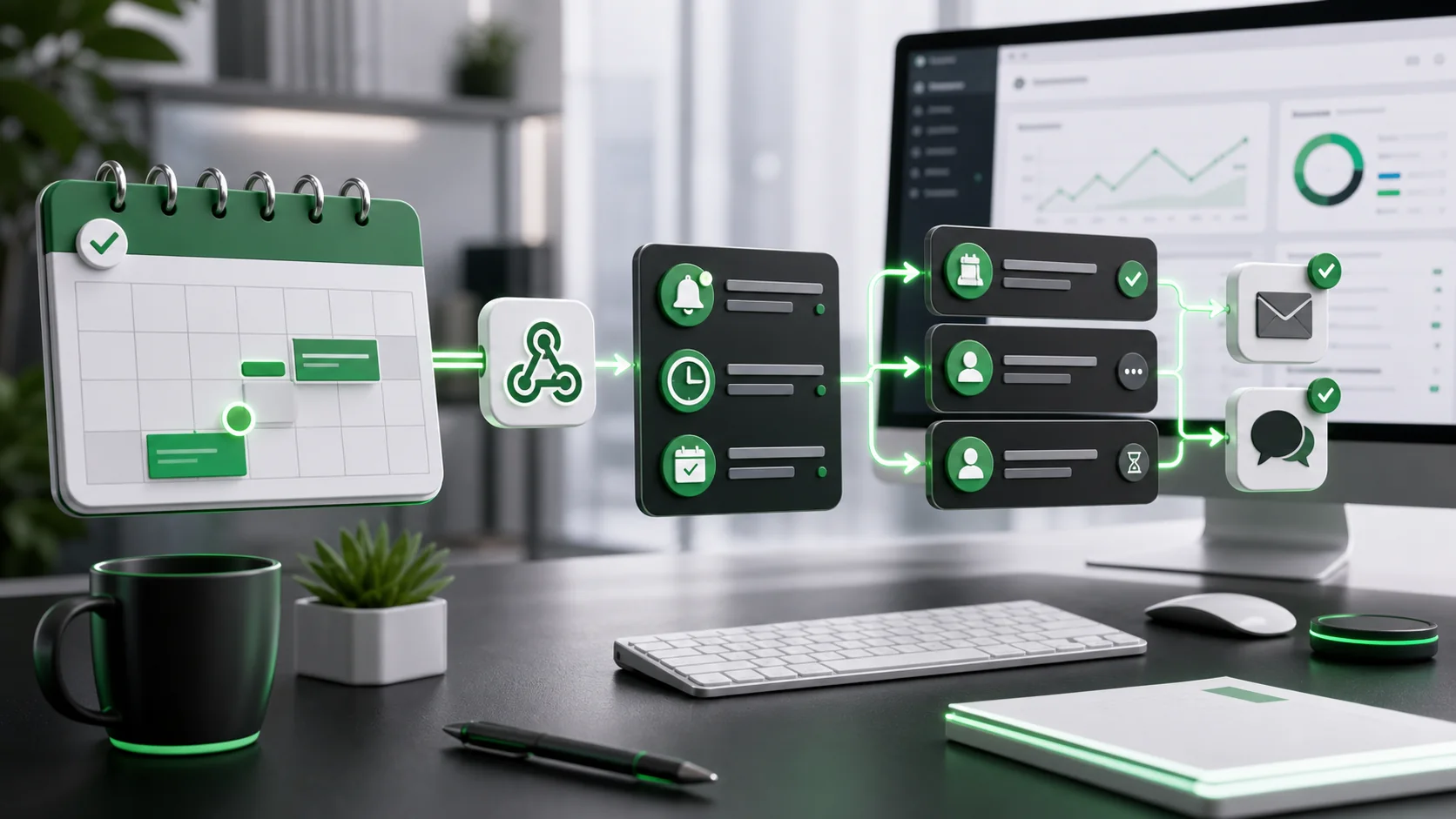
Service appointments change often. A customer asks for a later time, a technician is reassigned, a booking is moved to another day, or an office user edits the calendar without notifying dispatch. When the change is not visible to the right people, the result can be a missed visit, confused customer, or technician arriving at the wrong time.
A calendar change alert workflow watches appointment updates and routes the right notification before the change becomes an operational problem. It is useful for repair services, inspections, cleaning companies, field teams, clinics, consultants, and any business where calendar accuracy affects customer experience.
What the automation should detect
The workflow should detect appointment creation, time changes, cancellations, owner changes, location changes, and important note updates. It should not send a noisy alert for every harmless edit. The value comes from separating routine calendar activity from changes that affect the customer or the service team.
Recommended workflow
1. Watch the calendar source
Use the calendar that the team actually relies on. Google Calendar API push notifications can notify an application when watched resources change, which is useful when you want to avoid constant polling. The receiving endpoint must be HTTPS, and each watched resource needs its own notification channel.
2. Compare the before and after state
A change event by itself is not enough. Store the previous appointment state, then compare it with the updated record. Focus on fields that matter: date, start time, end time, address, assigned technician, customer contact, and appointment status.
3. Classify the change
Use practical labels such as customer-visible, dispatch-visible, internal-only, cancellation, reschedule, location change, and owner change. This classification prevents the same automation from sending the same alert to everyone.
4. Route alerts by impact
If the appointment time changes, alert dispatch and the assigned technician. If the customer must confirm, send the customer a confirmation request. If only an internal note changed, update the CRM record without creating a customer message.
5. Send team alerts where work happens
A team alert can go to Slack, Microsoft Teams, Google Chat, email, or a service dashboard. Slack incoming webhooks are one example of a simple way to post structured messages into a team channel. Keep the alert short and link back to the secure appointment record.
Fields to track
- Appointment ID and calendar event ID
- Previous time and new time
- Previous owner and new owner
- Customer confirmation status
- Dispatch acknowledgement status
- Change source and timestamp
Quality gates before launch
Test common scenarios: customer reschedule, office reschedule, technician reassignment, cancellation, address edit, and internal note edit. Confirm that the workflow alerts the right person once, does not expose sensitive details in broad channels, and stops after acknowledgement.
Limitations
Calendar APIs can tell you that something changed, but the business still needs clear rules for what each change means. If staff keep multiple unofficial calendars, automation will not fix the underlying process. First choose one operational calendar or one CRM appointment record as the source of truth.
The practical result is fewer missed updates, clearer dispatch handoffs, and better customer communication when appointment details change.
Change types that deserve different alerts
Not every calendar edit has the same impact. A time change should notify the customer and assigned technician. A note update may only need to sync into the CRM. A location change should trigger an address confirmation step. A cancellation should stop reminders and release the service slot.
Suggested alert rules
- Time changed within 24 hours: alert dispatch and technician.
- Address changed: request customer confirmation before dispatch.
- Assigned owner changed: notify both old and new owners.
- Appointment cancelled: stop reminders and update the CRM status.
- Internal note changed: sync quietly unless a keyword requires review.
Audit trail requirement
Store who changed the appointment, what changed, when it changed, and which alerts were sent. This gives the team a clear timeline if a customer later asks why the visit time changed.
Before you turn it on
Before relying on calendar alerts, decide which system wins when the calendar and CRM disagree. If the team edits both places manually, the workflow should flag the conflict instead of choosing one silently. For service teams, the safest source of truth is usually the record that dispatch uses on the day of the visit.
Operational checks before launch
Calendar-change alerts should focus on changes that affect the customer or the field team. A minor internal note may not need a notification, but a time change, staff change, location update, cancellation, or reschedule request usually does. Define these event types before building the workflow. Clear rules reduce notification noise and help staff trust the alerts they receive.
Test the workflow with real scheduling patterns before depending on it. Service businesses often move appointments because of traffic, emergency jobs, delayed customers, or missing information. The automation should update the right people without sending contradictory messages. It should also keep a visible history of the change, because appointment disputes are easier to resolve when the team can see what changed and when.
Review after launch
After the first week, review whether alerts helped staff act sooner or only created more messages. Remove low-value notifications and keep the alerts that directly prevent missed visits, late arrivals, or customer confusion.
Sources used
Related GainEdge guides
Worked implementation example: apply this workflow to a real operation
Illustrative example—not a client result: Assume a local service team processes 40 relevant events in a week. The automation first writes a unique event ID, retrieves the current appointment and customer record, and applies only approved rules. Thirty-four records pass, four are routed to scheduling owner because required fields are missing, and two are held because the source data conflicts. Those numbers are illustrative, but the pattern is useful: automation handles clear cases while uncertainty remains visible.
Minimum data contract
| Field | Purpose | Validation rule |
|---|---|---|
| event_id | Prevents duplicate processing | Required and unique |
| record_id | Connects the event to the current appointment and customer record | Must resolve before action |
| source_updated_at | Detects stale data | Must be newer than the last processed version |
| decision_state | Stores pass, review, or hold | Never default an unknown value to pass |
| decision_reason | Makes the result auditable | Required for review, hold, and overrides |
| owner | Assigns exceptions to the scheduling owner | Must name a role or queue |
Workflow diagram
- Trigger: receive a booking, schedule, address, or attendance event and store its unique event ID.
- Retrieve: load the newest appointment and customer record; reject stale or unmatched data.
- Validate: check required fields, permissions, consent, and approved business rules.
- Decide: return pass, review, or hold with a plain-language reason.
- Act: perform only the approved action, then write the result and timestamp.
- Measure: review exceptions weekly and use manual booking exceptions divided by total booking events as a quality signal.
Failure tests before launch
- Send the same event twice and confirm the second copy makes no customer-facing change.
- Remove one required field and confirm the record enters review rather than passing.
- Use an older source timestamp and confirm the workflow refuses to overwrite newer data.
- Disconnect the destination system and confirm the action is queued with an accountable owner.
- Test an approved override and verify that the person, reason, and time are retained.
Keep the first review small: 20–50 shadow-mode events are usually enough to reveal field-mapping and ownership problems without pretending to establish a universal benchmark. Document the baseline, the rule version, and every disagreement between the workflow and reviewer.
Continue through this topic cluster
Reviewed by the GainEdge Editorial Team on 26 July 2026. See our editorial and corrections policy for sourcing, testing, AI-assistance, and update standards.