
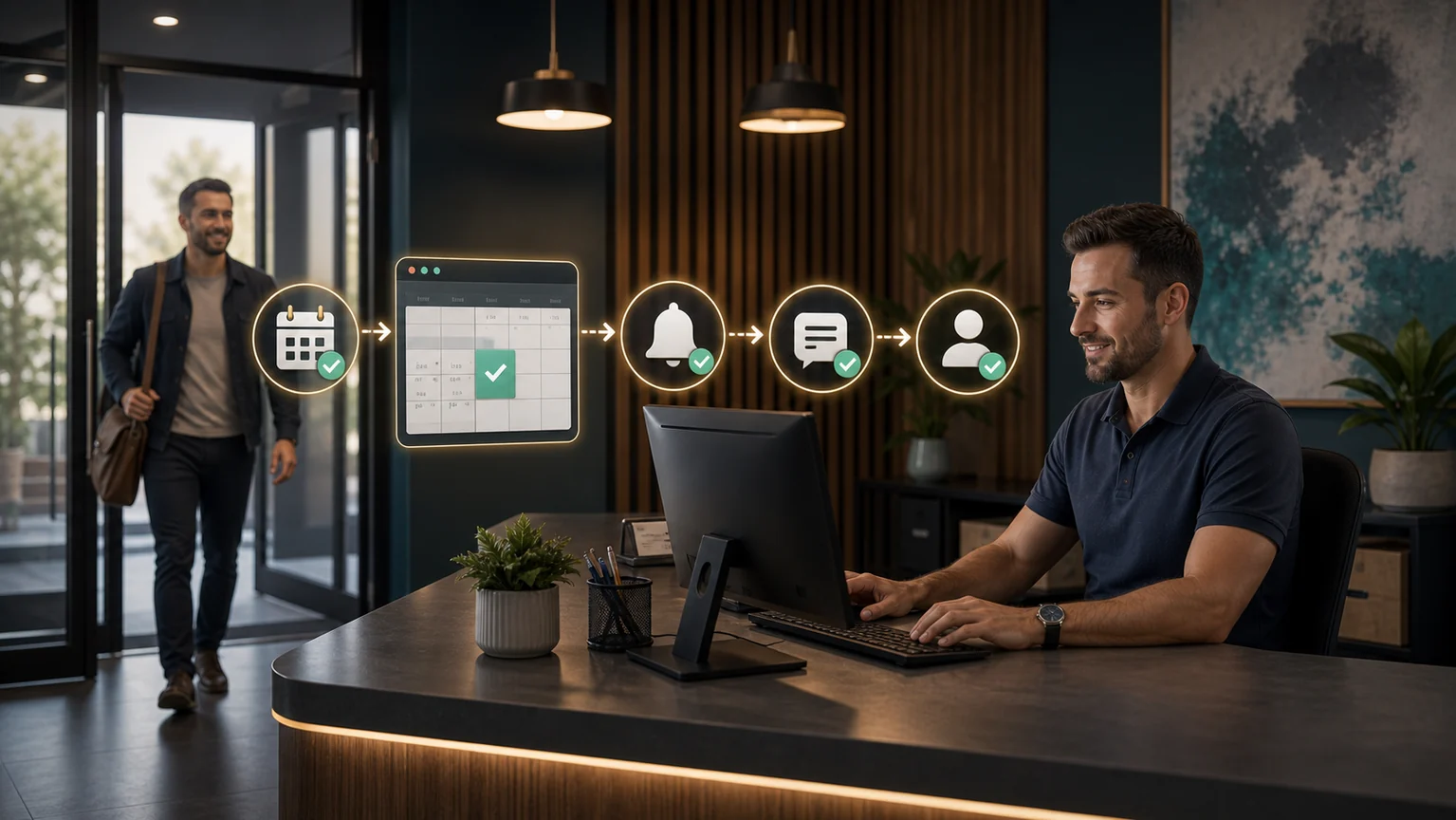
Editorial note: This guide discusses workflow design, not a guarantee that reminders will eliminate missed appointments.
Appointment reminders work best when they reduce uncertainty. Customers need to know when and where the appointment occurs, how to prepare, and how to reschedule. Sending more messages is not the objective. Sending the smallest useful sequence through an appropriate channel is.
A sensible reminder sequence
Immediately after booking
Send a confirmation containing the date, local time, location or meeting link, service name, duration, preparation instructions, cancellation policy, and a rescheduling route. The message should make clear whether the appointment is confirmed or still awaiting staff approval.
One to three days before
Send a reminder appropriate to the service. High-preparation appointments may need more notice; simple consultations may not. Avoid inserting sensitive details into an SMS preview or email subject.
A few hours before
Use this only when it is operationally useful. Include a concise arrival instruction or joining link. Do not send a late-night message because the business calendar and customer timezone were interpreted differently.
After the appointment state changes
Cancel pending reminders when an appointment is canceled, completed, or marked as a no-show. A stale reminder after cancellation damages trust and creates support work.
Workflow architecture
- The booking system creates or updates an event.
- The automation stores the booking ID, timezone, status, and communication preference.
- Scheduled reminder jobs reference the booking ID rather than copying static details.
- Before each send, the workflow rechecks current status and suppression rules.
- The provider returns delivery or failure information.
- Failures create a staff task when the appointment is important and another contact route is allowed.
Calendly Workflows can automate communications before and after events. Other booking systems offer similar native features. Use the booking platform’s built-in reminder system first when it meets the requirement; add Make or n8n only when you need cross-system logic, a CRM update, or a specialized escalation.
Consent and channel rules
- Record the channel the customer agreed to use.
- Separate transactional reminders from promotional marketing.
- Honor opt-outs and suppression lists across every connected tool.
- Identify the business in every message.
- Provide a human route for corrections and accessibility needs.
- Retain only the personal data required for the workflow.
Common failure modes
Timezone drift: store an unambiguous timestamp and the appointment timezone. Test users traveling between zones.
Duplicate reminders: create a unique key from booking ID, reminder type, and scheduled time.
Old meeting links: retrieve current event details immediately before sending.
Reschedule loops: cancel reminder jobs tied to the old event and create new jobs for the replacement.
Over-messaging: cap the number of reminders and coordinate email and SMS rather than letting separate tools send independently.
Metrics worth tracking
Track delivery failures, reschedule rate, opt-out rate, support replies, no-show rate, and manual interventions. Do not interpret a correlation as proof that reminders caused the change. Compare similar periods and note policy or staffing changes.
If phone calls are also an important source of appointments, continue with Automating Missed-Call and Web-Lead Follow-Up. For platform selection, see Make vs n8n.
Sources and further reading
Recommended reminder schedule
A practical schedule is one reminder 24 hours before the appointment and one shorter reminder 2 to 3 hours before arrival. For high-friction services, add a confirmation step in the first reminder. For routine services, keep the message shorter and avoid repeating information the customer already confirmed.
Message content checklist
- Appointment date and time window
- Business name and service type
- Reschedule link or phone number
- Preparation instructions if needed
- Simple opt-out or preference handling where required
When not to send another reminder
Stop reminders when the appointment is cancelled, rescheduled, completed, or manually blocked by the team. Also stop when the customer has already confirmed and the next message would not add useful information. The safest automation is one that knows when to stay quiet.
Before you turn it on
Before turning this on, review the exact words customers will receive on mobile. The message should be short enough to scan, but specific enough to prevent calls asking for the same details. Test the workflow with a cancelled booking, a rescheduled booking, and a completed appointment so reminders do not continue after the schedule changes.
Operational checks before launch
Appointment reminders should reduce no-shows without overwhelming customers. Choose reminder timing based on how much preparation the customer needs and how often appointments change. A common pattern is one reminder the day before and one shorter reminder on the day of service. The message should include the time, location or call link, preparation notes, and a clear way to reschedule.
Review reminder results monthly. Look at no-show rate, late cancellations, customer complaints, and staff feedback. If customers reply with the same questions, update the reminder content. If many customers reschedule after the first reminder, send it earlier. The workflow should improve from customer behavior instead of staying fixed after the first setup.
Review after launch
After deployment, ask staff which reminder replies create extra work. If customers often ask about price, location, documents, or preparation, the reminder should answer those questions before the appointment day.
Final practical check
A practical final check is to compare appointment data before and after the reminder workflow. Look at no-shows, same-day cancellations, late arrivals, and customer replies. If reminders reduce no-shows but increase confused replies, the content needs clearer instructions. If no-shows stay high, the business may need confirmation links, deposits, or manual follow-up for higher-risk bookings.
Troubleshooting playbook: apply this workflow to a real operation
Illustrative example—not a client result: Start with the failure, not the happy path. If the workflow acts on stale availability or incomplete location data, pause outbound actions and inspect the source timestamp, unique record ID, consent or approval state, and the last successful step. Replay only from a stored checkpoint. Never rerun the entire workflow when that could send a second message or create a duplicate record.
Minimum data contract
| Field | Purpose | Validation rule |
|---|---|---|
| event_id | Prevents duplicate processing | Required and unique |
| record_id | Connects the event to the current appointment and customer record | Must resolve before action |
| source_updated_at | Detects stale data | Must be newer than the last processed version |
| decision_state | Stores pass, review, or hold | Never default an unknown value to pass |
| decision_reason | Makes the result auditable | Required for review, hold, and overrides |
| owner | Assigns exceptions to the scheduling owner | Must name a role or queue |
Workflow diagram
- Trigger: receive a booking, schedule, address, or attendance event and store its unique event ID.
- Retrieve: load the newest appointment and customer record; reject stale or unmatched data.
- Validate: check required fields, permissions, consent, and approved business rules.
- Decide: return pass, review, or hold with a plain-language reason.
- Act: perform only the approved action, then write the result and timestamp.
- Measure: review exceptions weekly and use manual booking exceptions divided by total booking events as a quality signal.
Failure tests before launch
- Send the same event twice and confirm the second copy makes no customer-facing change.
- Remove one required field and confirm the record enters review rather than passing.
- Use an older source timestamp and confirm the workflow refuses to overwrite newer data.
- Disconnect the destination system and confirm the action is queued with an accountable owner.
- Test an approved override and verify that the person, reason, and time are retained.
Keep the first review small: 20–50 shadow-mode events are usually enough to reveal field-mapping and ownership problems without pretending to establish a universal benchmark. Document the baseline, the rule version, and every disagreement between the workflow and reviewer.
Continue through this topic cluster
Reviewed by the GainEdge Editorial Team on 26 July 2026. See our editorial and corrections policy for sourcing, testing, AI-assistance, and update standards.