
Editorial note: This guide is an independent workflow tutorial. It does not contain affiliate links.
Technician dispatch notifications are easy to underestimate. A customer books a job, the calendar looks correct, and everyone assumes the field team has what they need. Then the technician arrives without gate instructions, the wrong service notes, missing photos, or no clear contact path.
A good dispatch automation gives the right person the right job context at the right time. It should not dump every customer detail into every channel. It should confirm eligibility, create or update the appointment, send the technician a concise notification, and alert the office when something needs human decision-making.
The Dispatch Workflow in One Sentence
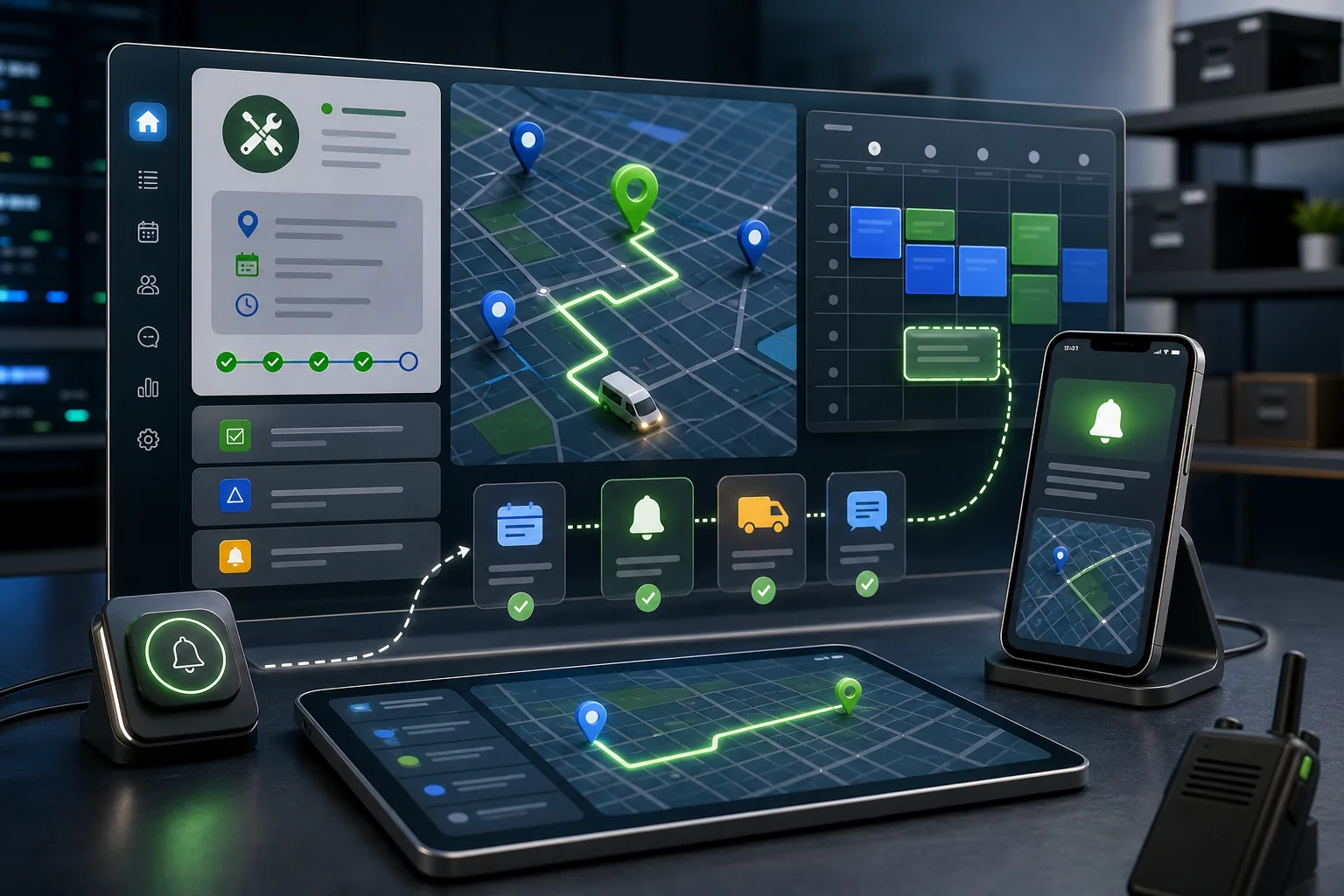
When a job is confirmed, check the service area and required information, create the calendar event, send a technician-ready job summary, log the dispatch status, and stop or escalate if the booking changes.
This workflow should sit between service area checks and customer appointment reminders. The customer reminder keeps the customer prepared. The dispatch notification keeps the field team prepared.
Step 1: Trigger Only After the Job Is Confirmed
Do not dispatch technicians from every new lead or quote request. The workflow should wait for a confirmed appointment, paid deposit, approved estimate, or manually approved job status. Otherwise, the field team receives noisy updates that do not represent real work.
n8n’s Webhook node can receive booking events from another system and start a workflow. If your booking tool cannot send webhooks, use a scheduled check that finds jobs newly moved into a confirmed status. Either way, keep an idempotency field such as dispatch_notification_sent_at so a retry does not send the same job again.
Step 2: Validate the Job Before Dispatch
Before notifying the technician, check whether the job is actually dispatch-ready. Minimum fields usually include:
- customer name or account reference;
- service address or site location;
- appointment date and time window;
- service type and job priority;
- assigned technician or team;
- safe customer contact method;
- access notes, parking notes, gate code policy, or site instructions;
- related photos or intake details when needed.
If required information is missing, the automation should create an internal task instead of sending an incomplete dispatch. This is especially important when the job depends on photos, equipment details, or access instructions. For that earlier step, use a workflow like pre-appointment photo collection.
Step 3: Create or Update the Calendar Event
The Google Calendar API supports creating events with start and end times, attendees, reminders, and event metadata. A dispatch workflow can use this to create a technician calendar event or update an existing appointment after assignment changes.
Use the calendar event as a schedule reference, not as the only source of truth. The CRM or booking system should still own the job status, customer record, payment status, and service notes. If the calendar event is deleted by accident, the business should not lose the job record.
Step 4: Send the Technician a Short Job Summary
The dispatch message should be concise. A technician in the field does not need a long CRM export. A practical notification contains:
- job type;
- arrival window;
- site area or address according to company privacy rules;
- customer contact policy;
- top three service notes;
- link to the full job record;
- what to do if information is wrong.
Slack incoming webhooks can send messages into selected channels. That can work well for office dispatch boards or team alerts. For field staff, a mobile-first channel may be more practical, but do not put sensitive customer data into channels that are not approved for that purpose.
Step 5: Use SMS Carefully
Some teams use SMS for urgent dispatch notifications. That can be effective, but the workflow needs clear limits. Twilio’s opt-out documentation explains how messaging services can handle keywords such as STOP, START, and HELP. Even when messages are internal, keep the content brief and avoid sending private customer data unnecessarily.
If the technician receives a link to a secure job page, the SMS can stay short: job assigned, time window, and link. Avoid sending full customer histories over text.
Step 6: Attach Documents Without Over-Sharing
Some jobs need photos, inspection forms, permits, floor plans, or signed approvals. Google Drive permission management can control how files and folders are shared. That is useful, but it can also create privacy problems if a folder is opened too broadly.
Share only what the technician needs for the job. If a file contains internal pricing, complaints, payment notes, or unrelated customer details, keep it out of the dispatch package.
Step 7: Handle Changes and Cancellations
Dispatch automation must react when the appointment changes. If the customer reschedules, cancels, no-shows, or changes the job scope, the technician should not rely on yesterday’s notification.
At minimum, add these status rules:
- rescheduled appointment updates the calendar and sends a change notice;
- canceled job sends a cancellation alert and removes or marks the event;
- customer no-show creates a field note and starts the no-show process;
- job scope changed triggers office review before technician dispatch.
If missed appointments are common, connect dispatch to no-show follow-up so the office has a consistent process after the field team reports the issue.
Step 8: Keep a Dispatch Log
Every dispatch workflow should write a small log entry. Store the job ID, assigned technician, dispatch time, channel, calendar event ID, and delivery result. This makes it possible to answer practical questions later: Was the technician notified? Which channel was used? Did the job change after dispatch?
The log also helps the business improve. If dispatch failures cluster around missing access notes, the intake workflow needs stronger required fields. If route changes happen often, the booking process may need better service-area filtering.
Common Mistakes
Dispatching before confirmation
Only dispatch confirmed jobs. Leads, draft estimates, and unpaid bookings should stay in sales or office workflows until they meet dispatch criteria.
Sending too much customer data
Give the technician enough context to perform the job, not every piece of CRM history. Sensitive information should stay in approved systems.
No update after rescheduling
A dispatch notification is not complete unless the workflow also handles changes. Treat reschedules and cancellations as first-class events.
No fallback when assignment is missing
If no technician is assigned, the automation should alert the dispatcher. It should not send a generic team-wide message and hope someone notices.
A Safe Minimum Setup
- Trigger only from confirmed job status.
- Validate required fields and service area.
- Create or update the technician calendar event.
- Send a short job summary to the assigned technician or team.
- Log dispatch status and channel.
- Route missing information to the office.
- Update or cancel notifications when the appointment changes.
If your team is still handling customer questions manually, combine this with customer support email triage so job changes and urgent access issues are not buried in the inbox.
Sources
- Google Calendar API: Create events
- n8n Webhook node documentation
- Slack Developer Docs: Incoming webhooks
- Twilio: Advanced opt-out for Messaging Services
- Google Drive API: Share files, folders, and drives
Measurement worksheet: apply this workflow to a real operation
Illustrative example—not a client result: Capture a seven-day baseline before enabling actions. Record total eligible events, automated passes, human-review cases, holds, duplicate attempts, and corrections. Then calculate the exception rate as human-review cases divided by eligible events. Track jobs requiring correction divided by jobs processed separately; a falling exception rate is not useful if incorrect actions increase.
Minimum data contract
| Field | Purpose | Validation rule |
|---|---|---|
| event_id | Prevents duplicate processing | Required and unique |
| record_id | Connects the event to the current work order and technician record | Must resolve before action |
| source_updated_at | Detects stale data | Must be newer than the last processed version |
| decision_state | Stores pass, review, or hold | Never default an unknown value to pass |
| decision_reason | Makes the result auditable | Required for review, hold, and overrides |
| owner | Assigns exceptions to the operations owner | Must name a role or queue |
Workflow diagram
- Trigger: receive a work-order status, inventory, evidence, or assignment event and store its unique event ID.
- Retrieve: load the newest work order and technician record; reject stale or unmatched data.
- Validate: check required fields, permissions, consent, and approved business rules.
- Decide: return pass, review, or hold with a plain-language reason.
- Act: perform only the approved action, then write the result and timestamp.
- Measure: review exceptions weekly and use jobs requiring correction divided by jobs processed as a quality signal.
Failure tests before launch
- Send the same event twice and confirm the second copy makes no customer-facing change.
- Remove one required field and confirm the record enters review rather than passing.
- Use an older source timestamp and confirm the workflow refuses to overwrite newer data.
- Disconnect the destination system and confirm the action is queued with an accountable owner.
- Test an approved override and verify that the person, reason, and time are retained.
Keep the first review small: 20–50 shadow-mode events are usually enough to reveal field-mapping and ownership problems without pretending to establish a universal benchmark. Document the baseline, the rule version, and every disagreement between the workflow and reviewer.
Continue through this topic cluster
Reviewed by the GainEdge Editorial Team on 26 July 2026. See our editorial and corrections policy for sourcing, testing, AI-assistance, and update standards.