
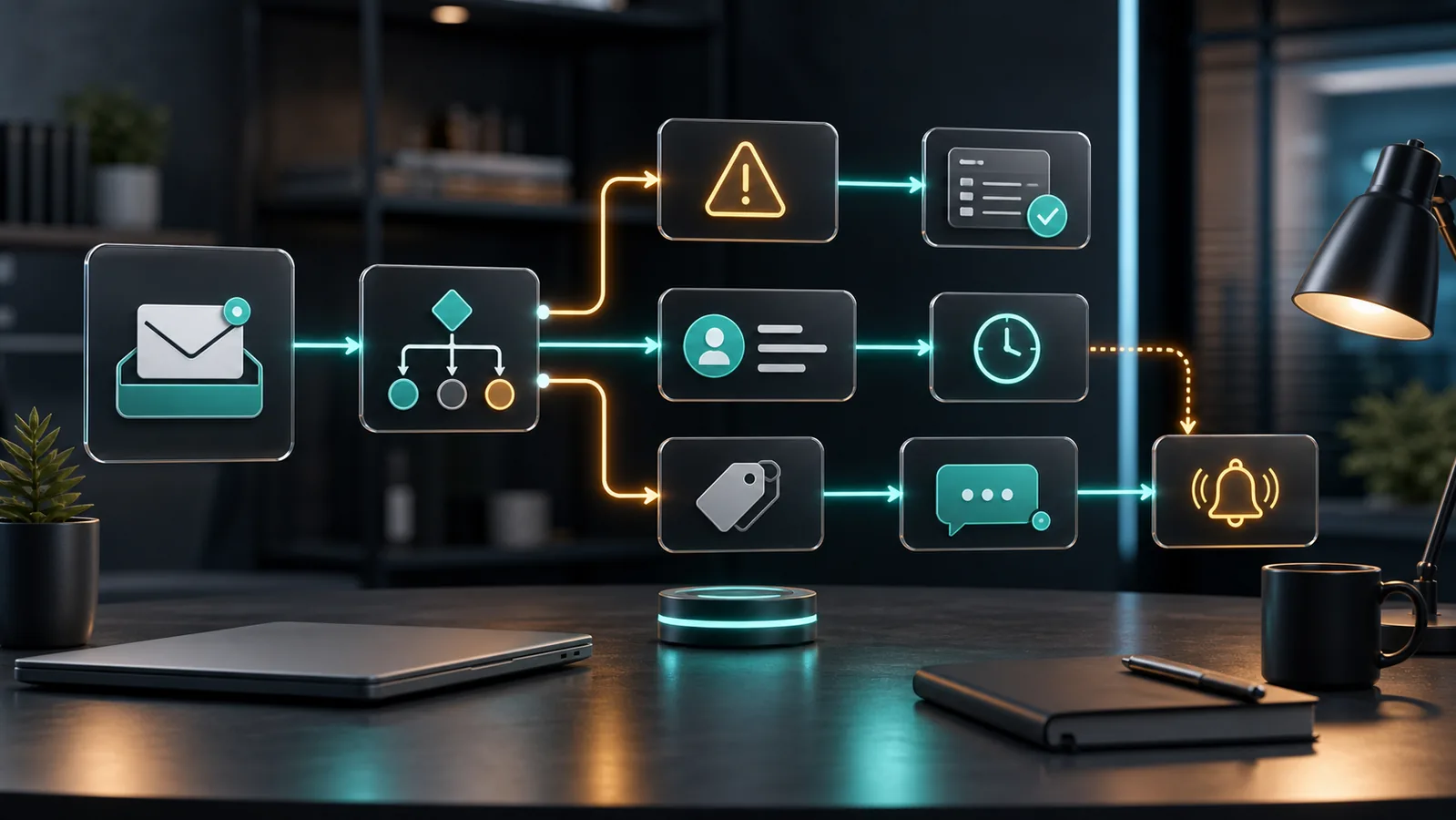
A shared support inbox can look manageable when a business is small. Then the same inbox starts receiving warranty questions, billing issues, scheduling changes, complaints, urgent service requests, and general questions. If every message waits for the owner to read and decide what it is, support becomes slow and inconsistent.
Customer support email triage automation helps a small service business sort incoming messages before a person starts working on them. The workflow does not need to answer every email automatically. A safer first version labels the message, routes it to the right queue, creates a task when needed, starts a response timer, and escalates urgent issues.
This guide explains a practical support triage workflow for small and local service businesses. It focuses on simple rules, clear ownership, and customer experience safeguards rather than complex AI classification.
What Support Email Triage Should Do
The purpose of triage is to decide what should happen next. A useful workflow should answer four questions:
- What type of support message is this?
- Is it urgent?
- Who owns the response?
- When should the business follow up if no one has replied?
For most small businesses, the first version should handle these actions:
- Read new messages from a support inbox.
- Ignore obvious noise such as newsletters and auto-replies.
- Classify messages into a small number of categories.
- Create a task or ticket for real customer issues.
- Send urgent messages to the right person immediately.
- Start a timer so unresolved messages do not sit unnoticed.
- Keep a clear audit trail in the inbox, CRM, or task tool.
Start With a Small Category List
Do not begin with twenty support categories. A long category list makes the automation brittle and hard to maintain. Start with five or six categories that match real operational decisions.
A practical first set:
- Urgent service issue: customer needs fast help or a service interruption is active.
- Scheduling change: appointment changes, cancellations, or arrival-time questions.
- Billing question: invoice, payment, receipt, or refund questions.
- Job status: customer asks for an update on active work.
- Complaint: dissatisfied customer, negative experience, or escalation risk.
- General question: anything that does not need immediate routing.
This is enough to create better routing without pretending the automation understands every situation perfectly.
Use Inbox Rules Before AI
AI classification can help later, but the safest first version should use simple rules that are easy to audit. For example, a message with “invoice,” “receipt,” or “payment” in the subject or body can go to billing review. A message with “cancel,” “reschedule,” or “appointment” can go to scheduling. A message from an existing client domain can be prioritized over unknown promotional emails.
Simple rules also reduce cost and risk. If a rule is wrong, the owner can see why. If an AI model is wrong, the reason may be less obvious.
Capture New Messages Reliably
The workflow can start from a connected inbox or an email trigger. In n8n, the Email Trigger (IMAP) node can watch a mailbox for new email. If the support address is Gmail-based, a Gmail integration can also be used depending on the existing setup.
At the start of the workflow, capture these fields:
- Sender email.
- Sender name if available.
- Subject line.
- Message body or clean preview.
- Received time.
- Thread or message ID.
- Attachments flag.
Keep the original message link or ID. The team should be able to open the exact email from the task or ticket.
Filter Out Noise
Support inboxes often receive non-support messages. Before routing anything, filter obvious noise:
- Newsletters.
- Marketing pitches.
- Delivery failure notices.
- Out-of-office replies.
- Automated system notifications that do not need action.
Do not delete these messages automatically at first. Label or archive them only after you have reviewed the rule for a few days. The first week should be treated as calibration.
Route Messages With a Switch or If Logic
After filtering noise, route messages into categories. A Switch node is useful when several outcomes are possible. An If node is useful for yes-or-no checks such as whether a message is urgent.
Example routing logic:
- If subject or body contains billing terms, route to billing.
- If message mentions cancellation or rescheduling, route to scheduling.
- If message includes urgent terms, route to escalation.
- If sender is a known client and the thread is active, route to the account owner.
- Otherwise, route to general support review.
Each route should create a clear next action, not just a label.
Create a Task or Ticket
If the message needs action, create a task or ticket. The task should include enough information for the assigned person to respond without searching through the inbox.
Include:
- Customer name and email.
- Category.
- Urgency level.
- Subject line.
- Short message preview.
- Original email link or message ID.
- Suggested owner.
- Due time or response target.
If the business uses a CRM, attach the task to the customer record. If it uses a task tool, create the task there. If it is still small, a shared support board is enough for the first version.
Set Response Targets
Not every support message needs the same response time. Set realistic response targets by category.
- Urgent service issue: review immediately.
- Complaint: review same business day.
- Scheduling change: review before the appointment window.
- Billing question: review within one business day.
- General question: review within two business days.
These are internal targets, not promises to customers. Only publish a response-time promise if the business can reliably meet it.
Add a Wait Timer for Unresolved Messages
The timer is what prevents messages from being forgotten. After a task is created, wait a defined period and then check whether the task was completed, the ticket was closed, or the email thread received a reply.
A simple flow:
- Create the task.
- Wait four business hours for urgent issues or one business day for normal issues.
- Check whether the task is complete.
- If incomplete, notify the owner or team lead.
- If still incomplete after a second wait, escalate again.
This is not about punishing the team. It is about making invisible delays visible.
Handle Urgent Messages Carefully
Urgent routing needs a conservative design. Do not rely on one keyword such as “urgent” because customers may use it casually. Use a combination of terms and context.
Examples of urgent signals:
- “No service,” “leak,” “broken,” “cannot access,” or “emergency.”
- Existing customer status.
- Appointment is today.
- Complaint terms plus a negative review risk.
- Multiple follow-up emails in the same thread.
When a message looks urgent, route it to a person. Do not let automation send a generic response that sounds like the issue is solved.
Use Auto-Replies Only for Confirmation
Auto-replies can help, but they should be modest. The safest automated response confirms receipt and sets expectations. It should not claim that the issue has been reviewed.
A useful auto-reply might say:
“We received your message and routed it to the right team member. If this is urgent, please call us at the main service number.”
Keep it short. Do not send different auto-replies for every category until the routing is proven reliable.
Connect Support Triage to Existing Workflows
Support triage works best when it connects with the rest of the customer journey. These GainEdge articles cover adjacent workflows:
- How to Automate New Client Onboarding After a Sale for the handoff from sale to delivery.
- How to Automate Appointment Reminders Without Annoying Customers for reducing scheduling confusion.
- How to Automate Overdue Invoice Reminders for billing follow-up.
- How to Automate Google Review Requests Without Violating Policy for post-service reputation workflows.
What to Measure
Measure operational improvements, not just message volume.
- Number of support emails per category.
- Average first response time.
- Number of urgent escalations.
- Number of unresolved tasks after the response target.
- Messages incorrectly routed.
- Repeat complaints from the same customer.
If messages are often misrouted, simplify categories. If tasks are created but not completed, ownership is unclear. If urgent messages still wait too long, the escalation path needs to be stronger.
Common Mistakes
Too Many Categories
Complex routing looks impressive but fails quickly. Start with a few categories that lead to different actions.
Auto-Replying as if the Problem Is Solved
A confirmation email is fine. A fake resolution email is not. Customers can tell the difference.
No Owner for the Task
A ticket without an owner is just another inbox. Assign every actionable message to a person or role.
No Review Period
Review the automation daily for the first week. Fix routing rules before increasing automation.
Limitations and Safety Notes
Support messages may contain personal information, payment questions, medical details, legal issues, or private customer complaints. Do not send full message content into unnecessary tools or analytics platforms. Keep only the fields needed to route and resolve the issue.
Also avoid using automation to hide support access. If the customer has a real urgent problem, the workflow should make it easier to reach the right person, not harder.
If the business later adds AI classification, keep human review for complaints, refunds, safety issues, legal topics, and urgent service failures.
Implementation Checklist
- Define five or six support categories.
- Connect the support inbox to the automation.
- Filter obvious noise without deleting it at first.
- Route messages by simple rules.
- Create a task or ticket for actionable messages.
- Assign an owner and response target.
- Add a wait timer for unresolved tasks.
- Escalate urgent or overdue messages.
- Review routing accuracy daily for the first week.
- Improve rules only after seeing real message patterns.
Bottom Line
Customer support email triage automation is valuable because it reduces decision delay. The workflow does not need to answer every customer. It needs to identify what kind of message arrived, route it to the right place, create an accountable task, and make sure urgent or overdue issues are visible.
For a small service business, that is enough to improve response time without making support feel robotic. Start with simple categories, human-owned tasks, and clear escalation. Then refine the rules using real inbox data.