
Missed appointments are expensive because the loss is not only the empty time slot. A no-show can also create follow-up work, schedule confusion, staff frustration, and a silent customer who may still need help. For a small service business, the goal is not to shame the customer. The goal is to respond quickly, offer a clear next step, protect the calendar, and keep the team informed without requiring someone to remember every missed booking manually.
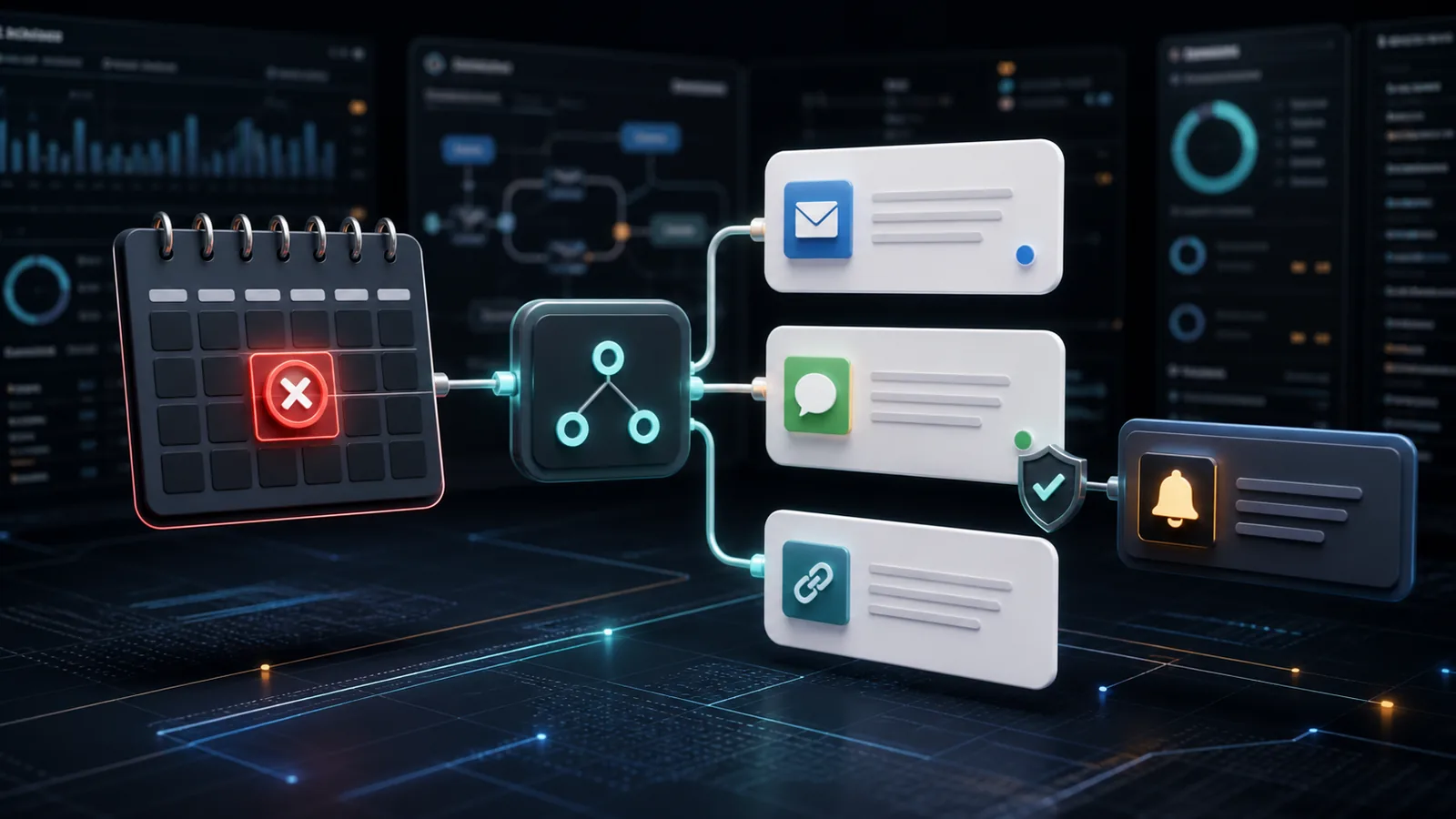
A practical no-show follow-up automation watches completed appointments, identifies bookings that were marked as missed, sends a short recovery message, opens a reschedule path, and alerts staff only when human judgment is needed. This article shows how to build that workflow with calendar data, email, optional SMS, and simple rules that work for clinics, repair services, consultants, salons, tutors, agencies, and other appointment-based businesses.
What no-show follow-up automation should do
The best no-show workflow is narrow. It should not try to run the whole customer relationship. It should solve one operational problem: after an appointment time passes and the customer did not attend, the business needs a consistent response.
A good workflow usually does five things:
- Detects missed appointments from a calendar, booking tool, CRM, or staff status field.
- Waits long enough to avoid false positives from late arrivals or manual status delays.
- Sends a polite follow-up email with one reschedule link and one support option.
- Sends SMS only when the customer has clearly agreed to receive appointment messages.
- Creates a staff task when the customer is high value, repeated no-shows, or an urgent service case.
This keeps the automation useful instead of aggressive. It should feel like a helpful service recovery message, not a penalty notice.
Choose a trigger that your team can trust
The trigger is the part of the workflow that decides when a no-show follow-up should begin. If the trigger is weak, the automation may message customers who actually attended, which damages trust quickly.
For most small businesses, the safest trigger is a status field, not only the clock. For example, the appointment moves from Scheduled to No-show in the booking tool, CRM, or calendar notes. If your system does not have a status field, use a scheduled workflow that checks appointments after the end time and looks for a staff note, tag, or missing check-in field.
n8n can retrieve and update Google Calendar events through its Google Calendar node, including getting many events or updating a specific event. That makes it suitable when the calendar is the operational source of truth. For workflows that run at fixed times, the n8n Schedule Trigger can start checks on a predictable interval, such as every 15 minutes or once after business hours.
If you already use appointment reminders, keep this separate from the reminder workflow. The reminder workflow helps customers attend. The no-show workflow handles what happens after they do not. For the prevention side, see how to automate appointment reminders without annoying customers.
Build the minimum data model first
Before building the automation, decide which fields the workflow needs. A simple data model prevents messy branching later.
Required appointment fields
- Customer name
- Email address
- Mobile number, only if SMS is allowed
- Appointment date and time
- Service type
- Assigned staff member
- Status: scheduled, completed, cancelled, no-show, rescheduled
- Reschedule link or booking page URL
Useful risk fields
- Customer value or account type
- Number of previous no-shows
- Whether payment was prepaid
- Whether the service is urgent
- Whether the customer has opted in to SMS
These fields allow the workflow to decide whether to send a normal recovery message, notify staff, or stop and wait for manual review.
Use a delay to reduce false positives
Do not send a no-show message the minute an appointment starts. Customers may be late, staff may be updating the calendar, or the appointment may have moved by phone. A delay is a simple way to avoid bad automation.
A practical rule is to wait 30 to 90 minutes after the appointment end time before sending anything. For same-day field service, a longer delay may be better because staff updates can arrive later. In n8n, the Wait node can pause a workflow until a time condition is met, after a fixed interval, or until a webhook/form response resumes the workflow. That makes it useful for no-show handling because the workflow can wait, recheck the appointment status, and only continue if the status is still no-show.
The recheck step matters. If the customer rescheduled during the delay, the workflow should stop. If staff changed the status to completed, the workflow should stop. If the status is still no-show, the workflow can continue.
Send one polite recovery email
The first message should be short and practical. It should not blame the customer. The purpose is to make recovery easy.
A good no-show email includes:
- A neutral subject line, such as “Need to reschedule your appointment?”
- A quick acknowledgement that the appointment was missed.
- One clear reschedule link.
- A support option if there was a problem attending.
- A simple note about cancellation or no-show policy only when necessary.
n8n’s Send Email node sends email through an SMTP server and supports plain text, HTML, or both. For this workflow, “both” is often safest because the email can look clean while still working in basic inboxes.
Example email structure
Subject: Need to reschedule your appointment?
Body: “Hi {{customer_name}}, we noticed you were not able to make your appointment for {{service_type}} today. If you still need help, you can choose a new time here: {{reschedule_link}}. If something went wrong or you need a different option, reply to this email and our team will help.”
Keep the message human. Avoid long policy language in the first message unless your business legally or operationally needs it.
Add SMS only with clear consent
SMS can work well for no-show recovery because people often see texts faster than emails. But SMS is also more sensitive. Use it only when the customer has opted in to appointment-related text messages, and keep the message transactional.
If you send SMS to US recipients using application-to-person traffic, Twilio explains that US A2P 10DLC was created so long-code SMS traffic is verified and consensual, and that application-to-person SMS/MMS sent over 10DLC numbers to US users requires registration. Even outside the US, the practical rule is the same: get permission, identify the business, make opt-out easy, and avoid marketing language in a service recovery message.
A safe SMS pattern is:
“Hi {{first_name}}, this is {{business_name}}. We missed you for today’s appointment. Reschedule here: {{short_reschedule_link}}. Reply HELP if you need assistance.”
Do not add discounts, upsells, or affiliate-style offers to a no-show SMS. The customer missed an appointment. The next step should be service recovery.
Create escalation rules for staff
Most no-shows should not create urgent staff work. If every missed appointment creates a manual task, the automation simply moves the workload from one place to another. Use escalation rules so staff only handle the cases where judgment matters.
Escalate to staff when:
- The customer has prepaid.
- The service is urgent or health/safety related.
- The customer has missed two or more appointments recently.
- The customer is a high-value account.
- The follow-up email bounces or SMS fails.
- The customer replies with frustration or a complaint.
This connects naturally with support automation. If the customer’s reply needs routing, use the same thinking from automating customer support email triage: categorize the reply, detect urgency, and assign a staff owner.
Prevent repeated no-shows without sounding harsh
One no-show may be an accident. Repeated no-shows need a different workflow. Instead of sending the same message forever, add a count-based branch.
Example rules:
- First no-show: friendly reschedule message.
- Second no-show within 90 days: reschedule message plus reminder of cancellation policy.
- Third no-show: staff review before another booking is confirmed.
This is where automation should protect the business without becoming rude. The system can flag repeat behavior, but a person should decide how to handle the relationship if the customer is important or the context is sensitive.
Connect no-show follow-up with client onboarding
No-show follow-up is not only for first appointments. It also matters after a sale. New clients often miss kickoff calls, setup appointments, document collection meetings, or training sessions. If those meetings are missed, the project slows down.
For paid clients, connect the no-show branch to your onboarding workflow. If a kickoff call is missed, the workflow can send the reschedule link, notify the account owner, and pause the next onboarding task until the meeting is completed. This pairs well with automating new client onboarding after a sale.
Track the numbers that matter
A no-show workflow should produce simple reporting. Do not overbuild the dashboard at the start. Track the numbers that tell you whether the workflow is helping.
- No-show rate by service type
- Reschedule rate after the first follow-up
- Average time from missed appointment to rescheduled appointment
- Repeat no-show count
- Manual escalations created
- Failed email or SMS delivery
If your no-show rate is high, the better fix may be earlier confirmation, deposit rules, clearer reminder timing, or better scheduling instructions. Automation can recover missed bookings, but it should also reveal where the process is weak.
A simple workflow you can build
Here is a practical version for a small business using Google Calendar, n8n, email, and optional SMS:
- Run a scheduled workflow every 30 minutes during business hours.
- Retrieve appointments that ended more than 30 minutes ago and are not completed, cancelled, or rescheduled.
- Check the status field or staff note for “no-show”.
- Wait another 30 minutes.
- Retrieve the appointment again and confirm it is still marked no-show.
- Send one recovery email with a reschedule link.
- If SMS consent exists, send one short transactional SMS.
- If the customer is prepaid, urgent, or a repeat no-show, create a staff task.
- Update the appointment record with “no-show follow-up sent”.
- Stop the workflow if the customer reschedules or replies.
If your business uses quote calls or discovery calls, connect this workflow with quote request follow-up automation. A missed quote call should usually trigger a softer message than a missed paid service appointment.
Common mistakes to avoid
The first mistake is sending too soon. Build in a delay and recheck status before messaging.
The second mistake is treating every missed appointment the same. A free consultation, prepaid repair visit, emergency service call, and ongoing client kickoff do not need the same follow-up path.
The third mistake is sending SMS without consent. Keep SMS transactional, permission-based, and easy to opt out of.
The fourth mistake is hiding policy details until after the customer misses. If deposits, cancellation windows, or no-show fees matter, state them clearly during booking and in reminders.
The fifth mistake is leaving staff out of high-risk cases. Automation should handle routine recovery and alert humans when context matters.
Limitations and human review points
No-show automation does not know the full customer situation. A missed appointment may be caused by illness, travel, confusion, wrong address, payment trouble, or a scheduling mistake by the business. That is why the first message should be neutral and why repeated or sensitive cases should go to staff.
Also remember that calendar data is only as good as staff usage. If staff do not mark completed appointments correctly, the automation may misclassify attendance. Start with a small pilot, review every message for one week, and adjust the delay and escalation rules before relying on it fully.