
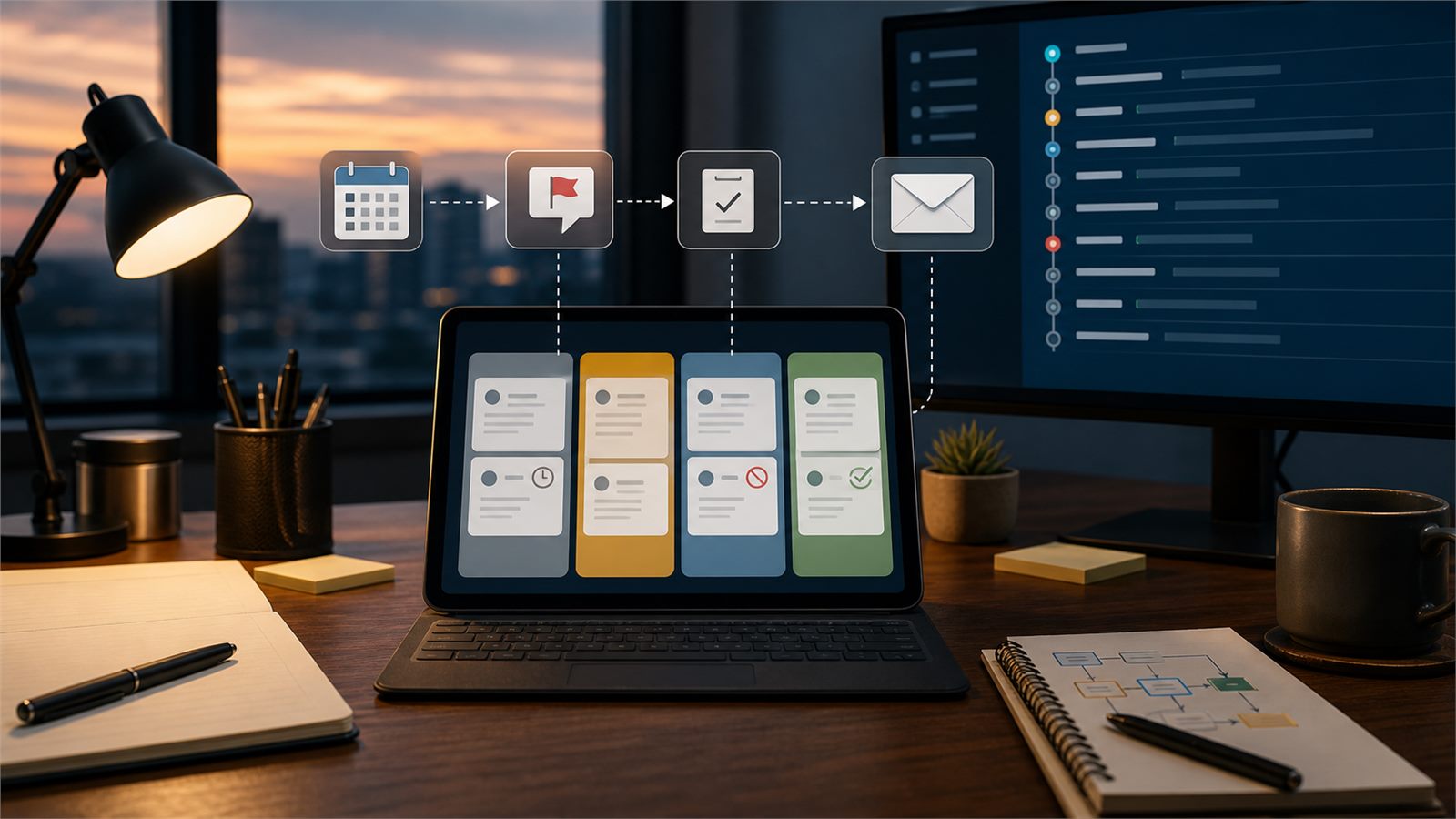
Review requests are easy to automate badly. A customer reports a missed appointment, a technician creates a callback, or a refund question is still open, but the system sends a cheerful review link anyway. The message feels careless, and the business may look like it is more interested in ratings than in fixing the problem.
A review request hold automation solves one narrow problem: before a review request is sent, the workflow checks whether the customer has an unresolved complaint, service exception, callback, refund request, opt-out, or manager review flag. If the record is not clean, the automation pauses the review request and routes the issue to a human.
Editorial note: This guide is an independent workflow tutorial. It does not contain affiliate links.
What this workflow should and should not do
The goal is not to hide negative feedback or ask only happy customers for reviews. That can become review gating, and it is the wrong operating principle. A better rule is simpler: do not ask for a public review while the business still owes the customer a response, correction, callback, refund decision, or closeout confirmation.
Once the issue is resolved, the business can use the same general review request process it uses for other eligible customers. Google Business Profile guidance allows businesses to share a review link or QR code, but it also warns that reviews must reflect genuine experiences and prohibits incentives for reviews, including posting, changing, or removing negative reviews. The FTC’s consumer review rule guidance also distinguishes generalized review solicitations from deceptive review conduct and warns about review suppression risk.
When review request holds are worth automating
This workflow is useful for local service businesses that send review requests after jobs, appointments, invoices, or support tickets. Good candidates include cleaning companies, contractors, HVAC teams, repair shops, salons, clinics, agencies, inspectors, pest control companies, and any business where a customer may have an unresolved issue after service.
If your team already uses customer complaint escalation alerts, this is a natural follow-up. The complaint alert helps the team respond quickly. The review request hold prevents a separate marketing automation from creating a second problem while that response is still in progress.
Step 1: Define hold reasons in plain language
Start with reasons that staff can recognize without debating policy. A review request should pause when the customer record has any of these active flags:
- open complaint or poor service note;
- missed appointment, late arrival, or no-show investigation;
- callback, rework, warranty visit, or follow-up inspection required;
- refund, discount, charge correction, or invoice dispute pending;
- manager review required before further messaging;
- customer asked not to be contacted by that channel;
- job completion evidence is missing or not approved.
Keep the list operational. The automation should not guess customer sentiment from one vague note. It should react to clear record states that your team already trusts.
Step 2: Put the hold status on the customer or job record
The hold has to live somewhere visible. Add fields such as review request status, hold reason, hold owner, hold created date, next review date, and resolution note. If you use a CRM, put those fields on the job, ticket, or customer timeline. If you use Airtable, the same pattern can work with views and automations: Airtable documents triggers such as record updates, records matching conditions, form submissions, webhooks, and scheduled times.
This is similar to job completion photo checks before invoicing. The most important part is not the AI or automation builder. It is a reliable status that downstream automations can read before they act.
Step 3: Check consent and opt-outs before any message
A review request is still a customer message. If it goes by SMS, email, WhatsApp, or another channel, the workflow should check consent, opt-outs, and channel preferences first. Twilio’s Advanced Opt-Out documentation explains how opt-out and opt-in keywords work in Messaging Services, including non-removable reserved words such as STOP and START/UNSTOP in specific contexts.
For a small business, the practical rule is: do not let a review workflow bypass the same communication controls used by service updates and follow-up messages. Connect it to your customer communication consent logs so review requests do not become a separate, unmanaged channel.
Step 4: Build the decision rule
A simple decision rule is enough for a first version:
- if the job is complete and eligible, continue;
- if the customer has opted out of the channel, stop;
- if any unresolved complaint or service exception exists, hold;
- if an invoice dispute or refund request is open, hold;
- if a manager review flag exists, hold;
- otherwise, send the standard review request after the normal delay.
Do not use a star-rating prediction or sentiment score as the deciding factor. That can push the workflow toward selective solicitation. Use concrete operational states: unresolved issue, not unresolved issue, channel allowed, channel not allowed.
Step 5: Route held records to a human queue
A hold is only useful if someone owns it. Create a view or task queue for records where review request status equals held. Each task should show the customer, job, hold reason, last contact, owner, and next action. Staff should be able to resolve the hold, extend it with a note, or mark the customer as do not request review.
If the issue involves billing, connect the queue to invoice reminder reply pauses so the customer does not receive payment pressure and a review request while the same dispute is unresolved.
Step 6: Release the hold after resolution
Resolution should require a real status change, not just the passage of time. Examples include complaint resolved, callback complete, refund decision sent, corrected invoice issued, manager approved, or customer opted back into the channel. Once the hold is released, the review request can enter the normal delay window.
Use a delay to avoid sounding mechanical. A same-minute review request after a complaint resolution can feel abrupt. For many service businesses, a next-day or two-day delay is more natural, especially when the issue required a manager or technician follow-up.
Step 7: Log every hold and release
The log should include customer ID, job ID, trigger event, hold reason, channel, owner, resolution status, reviewer, release date, and final action. This protects the business from mystery automations and helps staff improve the process over time.
The same audit mindset applies to booking conflict checks: the value is not only that software paused something. The value is that the team can see why it paused and what has to happen next.
A no-code starter workflow
A practical first version can use a CRM or Airtable base, a form or support inbox, an automation builder, and the review platform link your business already uses. The flow can look like this:
- Job or ticket changes to complete.
- Automation waits for the normal review request delay.
- Automation checks consent and opt-out status.
- Automation checks complaint, callback, refund, and manager review fields.
- If clear, it sends the standard review request.
- If not clear, it sets review request status to held and creates a human task.
- When the issue is resolved, the record re-enters the eligibility check.
If your team uses AI to summarize support messages, keep it advisory. An AI draft can suggest a hold reason, but a human-owned status should decide whether the review request is paused. For a related approval pattern, see AI draft response approval before sending emails.
Quality gates before launch
Test the workflow with real cases before turning it on. Include a clean completed job, an open complaint, a resolved complaint, a callback still pending, a refund dispute, an opted-out customer, a manager review flag, and a job where the review request was already sent. Confirm that no duplicate messages go out when a record changes status twice.
Also test mobile readability for the review request itself. The message should be short, plain, and easy to ignore. Do not imply that the customer must leave a positive review, do not offer incentives, and do not pressure the customer to change or remove negative feedback.
Limitations
This workflow does not solve reputation management by itself. It will not fix poor service, train staff, or make unhappy customers disappear. It only prevents poorly timed review requests and gives staff a queue for unresolved cases.
This article is not legal advice. Review rules, consumer protection duties, telecommunications rules, and platform policies can change. If review volume, incentives, regulated industries, or SMS marketing are material to your business, get advice from qualified counsel and review the current platform rules directly.
Bottom line
A review request hold automation should be narrow, transparent, and customer-respecting. Pause review requests when the business still owes a response, check consent before messaging, avoid selective solicitation, route exceptions to humans, and keep an audit trail. That is enough to prevent awkward review asks without turning the workflow into review suppression.