Invoice reminders are useful until a customer replies with a question. After that, the same automation can become a problem. A customer may have paid under a different reference, asked for a corrected invoice, disputed a line item, or requested a short delay. If the reminder sequence keeps sending “please pay now” messages, the business looks careless and the customer relationship gets worse.
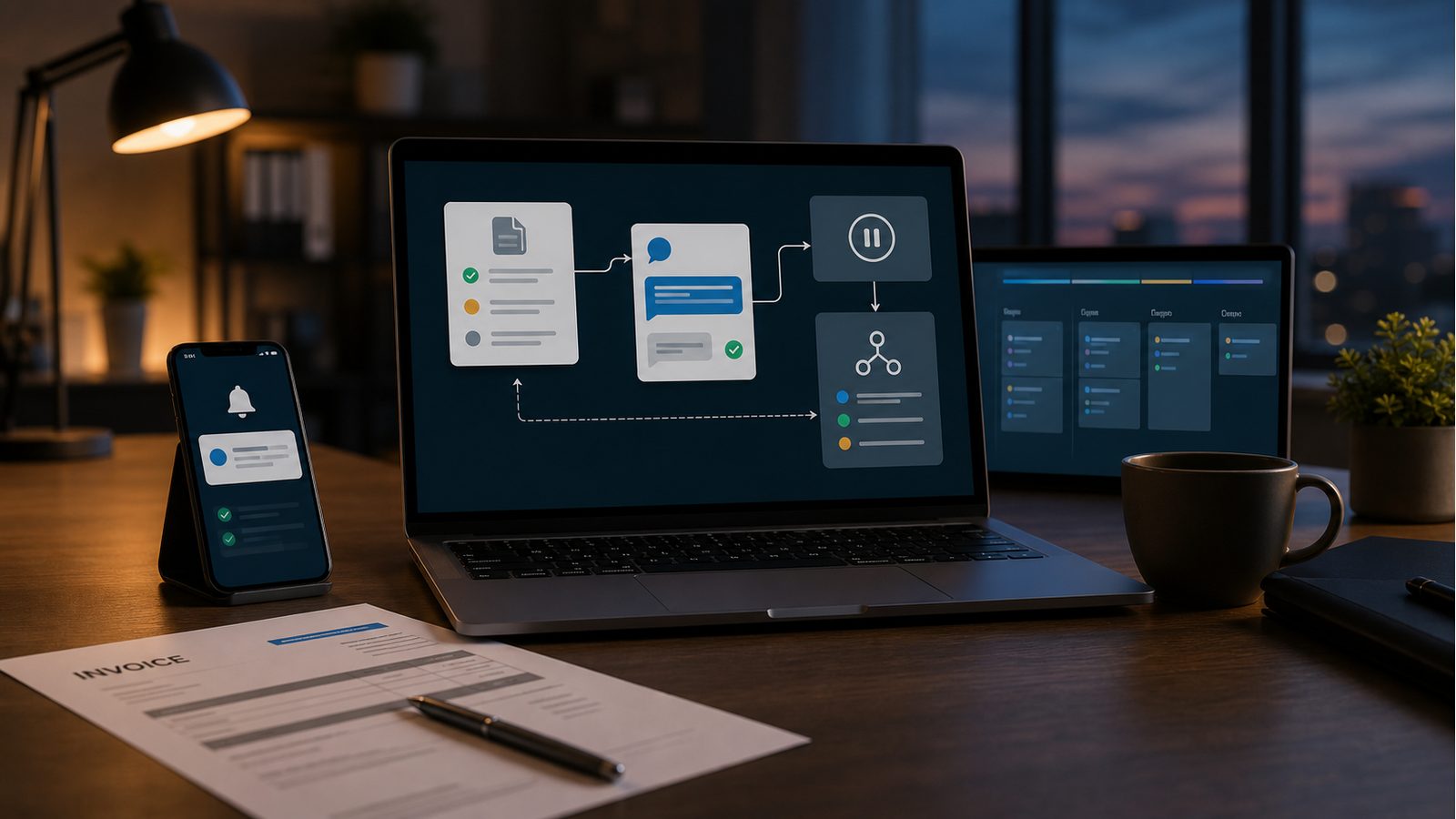
An invoice reminder reply-pause workflow solves a narrow problem: when a customer responds to an invoice or reminder, the automation pauses future reminders, captures the reason, and creates a staff task before the next message goes out. It does not replace billing judgment. It keeps the system from pushing on a customer while a real issue needs review.
Editorial note: This guide is an independent workflow tutorial. It does not contain affiliate links.
When this automation is useful
This workflow fits local service companies, agencies, clinics, repair businesses, contractors, and B2B service providers that send invoice reminders by email or SMS. It is especially useful when billing replies land in a shared inbox and nobody consistently updates the accounting system before the next automated reminder.
If your current workflow only checks whether an invoice is paid, start with payment receipt matching before customer follow-up. If the invoice is simply overdue with no reply, use a separate overdue invoice reminder workflow. This article focuses on the moment a customer replies and the reminder sequence should pause.
What the workflow should do
A practical first version has seven jobs:
- listen for replies to invoice and reminder emails;
- match the reply to the right customer and invoice;
- classify the reply as payment question, dispute, delay request, correction request, or unrelated;
- pause reminder messages for that invoice;
- create a billing review task with the original invoice context;
- notify the right person when the issue is urgent or high value;
- resume, adjust, or close the reminder only after review.
The important rule is simple: a customer reply should change the state of the workflow. It should not disappear inside an inbox while the reminder timer keeps running.
Step 1: Use invoice identifiers that can survive replies
The workflow needs a reliable way to connect a reply to the invoice. The easiest method is to include the invoice number, customer ID, or payment link ID in the reminder subject and email body. For example, use a subject like “Reminder: Invoice GE-1042 due July 24” instead of a generic “Payment reminder.”
Stripe’s invoicing documentation describes invoice lifecycle concepts such as draft, open, paid, void, and uncollectible invoices. Those status values matter because the automation should not pause or resume reminders blindly. It should first check the current invoice status in the billing tool, then decide what to do.
Store these fields in the workflow log:
- invoice ID and invoice number;
- customer name and email address;
- invoice status and balance due;
- last reminder sent date;
- reply received date;
- pause reason and assigned reviewer.
This structure also helps with CRM field mapping checks if billing data later moves into a CRM, spreadsheet, or support desk.
Step 2: Capture replies from the inbox
For Gmail accounts, Google’s Gmail API push notification guide explains how an application can watch a mailbox and receive notifications when mailbox history changes. In a simpler no-code setup, n8n’s Gmail node or IMAP Email Trigger can watch for new messages and start a workflow.
Filter tightly. The trigger should not process every email in the business inbox. Start with messages that match at least one of these conditions:
- the message is a reply to a known invoice reminder thread;
- the subject contains a valid invoice number;
- the sender matches the invoice contact email;
- the message arrived within the active reminder window;
- the thread label or mailbox folder is reserved for billing replies.
If your business already uses customer support email triage, keep billing replies in their own route. A support complaint and an invoice dispute may both need human review, but they should not land in the same generic pile.
Step 3: Classify the reply without over-automating it
The first classification can be rule-based. You do not need an AI model to detect obvious phrases like “already paid,” “wrong amount,” “can you resend,” “need W-9,” “dispute,” “not approved,” “next week,” or “speak to accounting.” These phrases can set a pause reason and create a staff task.
AI can help summarize longer replies, but it should not make final billing decisions. Keep the model’s job small: summarize the customer’s issue, suggest a category, and extract any promised date or reference number. A person should still approve refunds, write-offs, credit memos, collection escalation, or legal language.
Useful pause categories include:
- Paid already: customer claims payment was sent or processed;
- Invoice correction: customer says amount, address, tax, scope, or purchase order is wrong;
- Payment delay: customer asks for more time or a payment date;
- Dispute: customer challenges the work, charge, or approval;
- Missing document: customer needs invoice copy, receipt, form, or proof of service;
- Unrelated reply: message does not require pausing billing reminders.
Step 4: Pause the reminder at the invoice level
Pause the specific invoice, not the entire customer account, unless your policy requires it. A customer might have one disputed invoice and one normal recurring invoice. The workflow should update the reminder table, CRM note, or billing tag with a status such as “paused: customer reply received.”
Use a timeout. If the task sits untouched for too long, the system should alert a manager rather than silently resuming reminders. For example, set a 24-hour review SLA for active disputes and a three-business-day review SLA for routine document requests. This pairs naturally with first-response SLA alerts.
Step 5: Create a review task with enough context
A billing review task should include more than “customer replied.” Give the reviewer the invoice link, customer reply, amount due, service date, previous reminder history, and suggested category. If the customer says they paid, include a link to the payment reconciliation view or your payment receipt matching workflow.
A useful task format is:
- Task title: Review invoice GE-1042 reply before next reminder;
- Owner: billing admin or account manager;
- Due date: based on reply category and invoice value;
- Context: invoice amount, due date, customer message, last reminder date;
- Decision buttons or fields: resume reminders, send corrected invoice, mark paid, extend due date, escalate dispute.
For high-value invoices, route an additional alert to the owner. For small document requests, a normal task may be enough.
Step 6: Resume only after a clear decision
The workflow should not resume reminders because a timer expired. It should resume because someone made a decision or the source billing system changed status. Common outcomes are:
- invoice marked paid, so reminders stop permanently;
- invoice corrected and resent, so reminders restart from the new due date;
- customer promised a payment date, so reminders pause until that date;
- dispute escalated, so collection reminders remain off;
- reply was unrelated, so reminders resume with a note in the log.
If the decision changes a booking, service date, or account status, connect it to the relevant operational workflow instead of leaving it in billing only. For example, a customer who disputes a completed job may need a service manager review, not another payment email.
Step 7: Keep the customer message human
Once a customer has replied, avoid sending robotic payment pressure. A good acknowledgement is short and honest:
Thanks for your reply. We have paused automated reminders for this invoice while our team reviews your note. We will follow up with the next step.
Do not promise that a dispute is accepted, a fee is waived, or a due date has changed unless someone approved it. The workflow should reduce confusion, not create financial commitments.
What to measure
Measure whether the workflow prevents bad follow-up and improves review speed:
- invoice replies detected;
- reminders paused before the next scheduled send;
- billing review tasks completed on time;
- paid-already claims matched to receipts;
- corrected invoices issued;
- disputes escalated to the right owner;
- customers who received reminders while a reply was unresolved.
The last metric is the one to watch. If customers still receive reminders during unresolved billing replies, the workflow is not doing its main job.
Common mistakes to avoid
Pausing all reminders for every reply
Some replies are unrelated, such as an automatic out-of-office response or a simple “thank you.” Use thread matching and lightweight classification before pausing anything important.
Letting AI decide billing outcomes
AI can summarize and route. It should not approve refunds, waive balances, threaten collections, or decide whether a customer is right. Keep human approval in the path for financial decisions.
Forgetting about shared inboxes
If invoice reminders come from one address but customers reply to another, your workflow will miss cases. Standardize the sending address and reply-to address before building advanced logic.
No audit trail
Keep a simple log of when the reminder was paused, why it paused, who reviewed it, and what decision restarted or closed the sequence. That log protects the team when a customer asks why they received a message.
A simple starter stack
A small business can build this with a billing tool, Gmail or IMAP inbox, n8n or Make-style workflow builder, a CRM or task manager, and a spreadsheet or database table for pause state. Start with email replies before adding SMS, because email threads usually contain better invoice context.
Once the reply-pause workflow is stable, connect it to related systems: quote expiry reminders for pre-sale follow-up, customer complaint escalation alerts for unhappy customers, and daily lead source quality reports if billing issues reveal weak lead quality or expectation gaps.
Bottom line
Invoice reminder automation should be state-aware. If a customer replies with a payment question, dispute, correction request, or promised payment date, the system should pause and route the issue before sending another reminder. The best version is not complicated: match the reply, pause the invoice, create a review task, and resume only after a clear decision.