
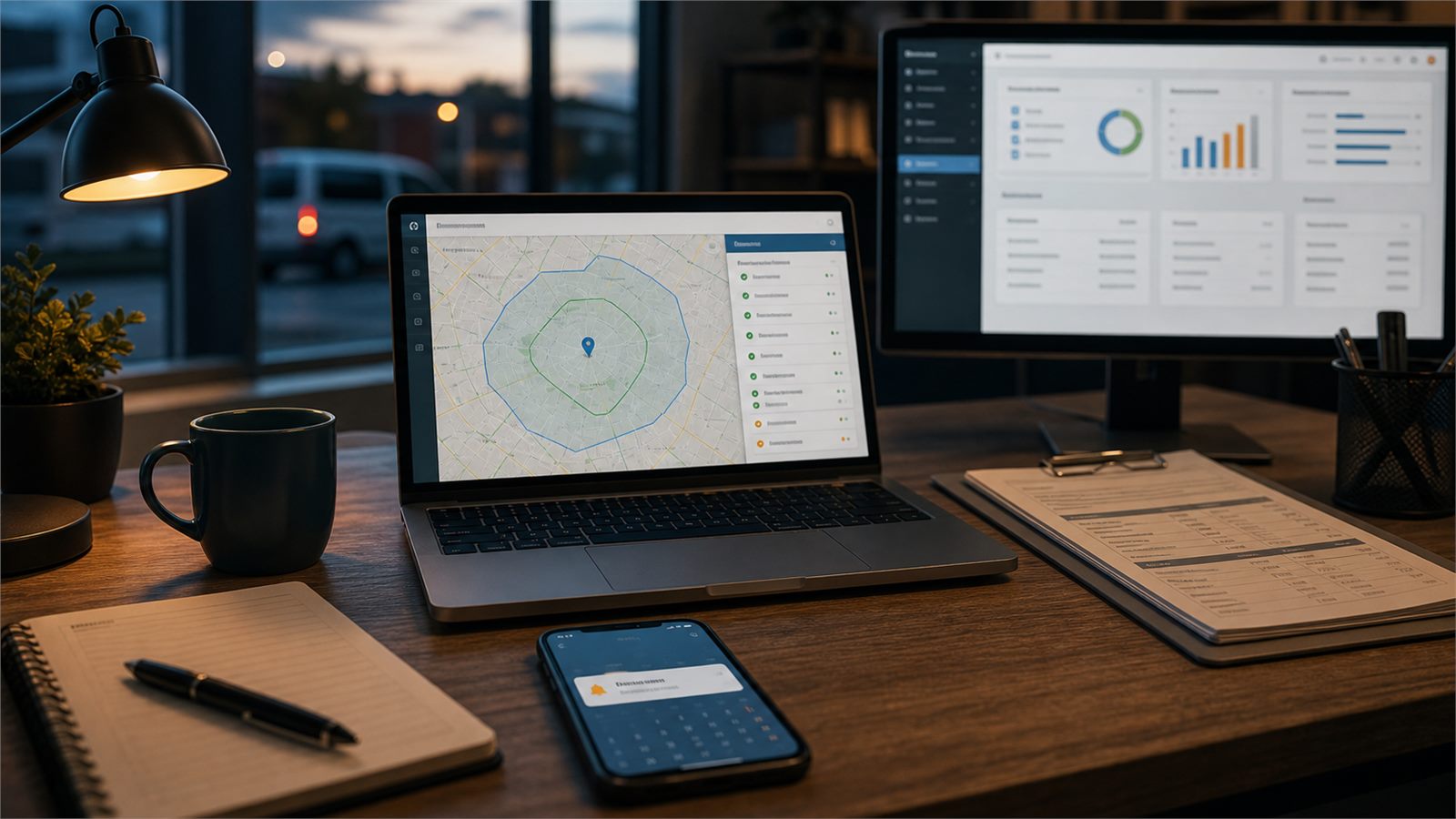
This guide focuses on difficult service-area edge cases: rural addresses, postcode boundaries, new developments, apartment entrances, border streets, geocoding uncertainty, and locations that are technically inside a polygon but operationally impractical to serve. For the standard implementation, begin with the broader service-area automation guide.
Use this troubleshooting guide when a normal boundary check is not enough
A simple inside-or-outside result works only when the submitted address is complete and the service boundary reflects how the business actually operates. Difficult cases need a review state rather than a forced yes or no. Store the normalized address, match confidence, boundary version, distance or travel-time result, reason for uncertainty, and the person who approved the outcome.
Keep three separate decisions: location validity asks whether the address can be resolved; geographic eligibility asks whether the point falls inside an approved area; and operational eligibility asks whether the team can realistically reach and service it. Combining all three into one checkbox makes failures hard to diagnose.
Edge-case test set
- a complete urban street address near the center of the service area;
- a valid address within 100 metres of a boundary;
- a rural property described by landmark rather than street number;
- a new development missing from one provider;
- an apartment complex with several entrances;
- a technically eligible address whose route crosses an impractical barrier;
- a customer correction submitted after the first check.
This guide focuses on difficult service-area edge cases: rural addresses, postcode boundaries, new developments, apartment entrances, border streets, geocoding uncertainty, and locations that are technically inside a polygon but operationally impractical to serve. For the standard implementation, begin with the broader service-area automation guide.
Use this troubleshooting guide when a normal boundary check is not enough
A simple inside-or-outside result works only when the submitted address is complete and the service boundary reflects how the business actually operates. Difficult cases need a review state rather than a forced yes or no. Store the normalized address, match confidence, boundary version, distance or travel-time result, reason for uncertainty, and the person who approved the outcome.
Keep three separate decisions: location validity asks whether the address can be resolved; geographic eligibility asks whether the point falls inside an approved area; and operational eligibility asks whether the team can realistically reach and service it. Combining all three into one checkbox makes failures hard to diagnose.
Edge-case test set
- a complete urban street address near the center of the service area;
- a valid address within 100 metres of a boundary;
- a rural property described by landmark rather than street number;
- a new development missing from one provider;
- an apartment complex with several entrances;
- a technically eligible address whose route crosses an impractical barrier;
- a customer correction submitted after the first check.
A lead can look promising until the address is checked. The customer may be outside your service radius, across a toll route, in a building your team cannot access, or in a neighborhood that only one technician covers on certain days. If that check happens after the job is booked, the business wastes time correcting expectations.
A service-area check automation solves one narrow problem: before a new job is confirmed, quoted, routed, or dispatched, the workflow verifies whether the address is usable and inside the service rules the business has actually agreed to operate.
Editorial note: This guide is an independent workflow tutorial. It does not contain affiliate links.
What a service-area check should decide
The workflow should not decide whether a customer is valuable or whether staff should make an exception. It should answer a practical booking question: can this address move forward automatically, does it need human review, or should the customer receive a polite out-of-area response?
For most local service companies, the decision is based on several checks together:
- whether the address can be validated or confidently geocoded;
- whether the location is inside a city, ZIP/postal code, radius, polygon, or dispatch zone;
- whether estimated travel time is acceptable for that service type;
- whether special access, parking, building type, or branch rules apply;
- whether the lead should be routed to a partner, waitlist, or manual review queue.
This is related to address confirmation before a service visit, but it happens earlier. Address confirmation asks, “Is this the right address?” A service-area check asks, “Can we serve this address under our current operating rules?”
When this automation is worth building
Build this when staff repeatedly discover out-of-area leads after a form submission, call, quote request, deposit request, or online booking. It is especially useful for cleaning companies, HVAC teams, repair services, mobile detailers, clinics with home visits, pest control companies, inspectors, tutors, and any field-service business with limited coverage.
If your team already uses booking conflict checks, this belongs beside that workflow. A calendar may be available, but the job still should not be confirmed if the address is outside the area your team can reasonably serve.
Step 1: Define service rules staff can explain
Do not begin with an automation tool. Begin with rules a dispatcher can explain to a customer without sounding arbitrary. Examples include:
- serve these cities automatically;
- serve these ZIP codes only for commercial jobs;
- serve within 20 miles of the branch for standard work;
- allow longer travel for high-value installations only after manager approval;
- exclude areas that require permits, ferry travel, gated access, or unavailable technician credentials;
- route out-of-area leads to a partner list or manual response.
Keep the first version conservative. If staff routinely override the automation, the rules are either too rigid or not visible enough.
Step 2: Normalize the address before checking distance
A service-area workflow is only as good as the address it checks. Start by collecting street address, city, region, postal code, country, and any apartment or unit details in separate fields when possible. Then validate or standardize the address before comparing it with service boundaries.
Google Maps Platform’s Address Validation API documentation describes the API as a way to validate and correct address components and provide metadata about the address. Its policies also matter because address data and geocoding results can have storage and display restrictions. If you use a maps provider, read the current terms instead of assuming the data can be stored forever in your CRM.
If the address cannot be validated confidently, do not reject the lead automatically. Move it to a manual review queue or send an address clarification message. That avoids losing real customers because of typos, new developments, rural routes, or building naming issues.
Step 3: Choose the right boundary method
There are several ways to define a service area. Pick the simplest one that matches how the business actually operates.
ZIP or postal-code list
This is easy to explain and maintain, but it can be blunt. A ZIP code may include areas that are too far away, and some nearby customers may sit just outside the list.
City or neighborhood list
This works when service rules follow local market names, but names can be ambiguous. The automation should still keep a fallback for uncertain addresses.
Radius from a branch
This is simple for one-location businesses, but straight-line distance is not the same as drive time. Bridges, highways, traffic, and terrain can make a nearby point impractical.
Travel-time or route rule
This is closer to dispatch reality. Google Maps Platform’s Routes API includes route and route-matrix capabilities that can support drive-time decisions, but cost, quotas, caching, and terms need attention before using it at scale.
Custom polygons
Polygons fit businesses with precise territories, franchise boundaries, or branch zones. They are more accurate than simple radius rules, but someone has to maintain them when coverage changes.
Step 4: Add service type and branch logic
A single yes-or-no field is often too simple. Many businesses serve a wider area for larger jobs and a smaller area for low-margin calls. Add fields such as service type, estimated job value, required technician skill, branch, preferred appointment window, and emergency status.
This is where lead owner assignment rules become useful. A lead inside the main area may go to the standard sales queue, while a border-area commercial request may go to a manager or branch owner before anyone promises availability.
Step 5: Build the no-code decision flow
A practical starter workflow can run from a website form, phone intake form, CRM record, Airtable form, or booking request. Airtable’s automation documentation lists common trigger types such as record updates, form submissions, records matching conditions, webhooks, and scheduled times. Those patterns are enough for a first service-area check.
- A new lead or booking request is created.
- The automation checks required address fields.
- The address is validated or geocoded.
- The result is compared with the service-area rule for that service type.
- If the address is clearly eligible, the workflow marks it ready for quoting or booking.
- If the address is clearly outside the area, the workflow creates the appropriate response task or message.
- If the result is uncertain, the workflow assigns a human review task.
Do not let this workflow confirm appointments by itself on day one. Connect it first to a status field such as service area status: eligible, out of area, manual review, address unclear, or exception approved.
Step 6: Write messages that do not overpromise
If the lead is eligible, the message can say the request is ready for the next booking or quote step. If the lead is out of area, keep the response polite and factual. Avoid pretending the business can help if staff know it cannot.
For uncertain addresses, ask for one specific correction: full street address, unit number, city, postal code, nearest landmark, or service location. If the lead came through SMS or email, respect the same consent controls used in customer communication consent logs.
Step 7: Prevent duplicates and repeated checks
Address checks can become noisy if every edit triggers the workflow again. Store the normalized address, geocode confidence, boundary result, last checked time, service-area status, and rule version. Re-check when an address field or service type changes, not every time a sales note is edited.
This is similar to duplicate lead checks before sales follow-up. The goal is not only to make a decision, but to keep a traceable record so the team knows why the workflow acted.
Step 8: Create an exception queue
Every service area has edge cases. A customer may be outside the normal radius but close to another scheduled job. A commercial contract may justify a longer route. A partner company may cover the area better. These cases should go to a visible queue instead of disappearing into a failed automation run.
The queue should show lead name, address, map link, service type, boundary result, estimated travel time if used, assigned owner, recommended next action, and deadline. If the lead is urgent, connect the exception to first-response SLA alerts so manual review does not become a slow response.
Quality gates before launch
Test with addresses that cover normal and awkward cases: inside area, outside area, border area, missing apartment number, typo in street name, rural address, new building, duplicate lead, commercial exception, wrong city, and branch-specific coverage. Confirm that the automation does not create duplicate tasks or send contradictory messages.
Also test what happens when the maps provider is unavailable, returns a low-confidence result, hits a quota limit, or changes pricing. The workflow should fail into manual review, not quietly approve or reject leads.
Limitations
A service-area check does not replace human judgment. It will not know every parking restriction, customer access issue, technician certification rule, or special contract. It also depends on external mapping data that can be wrong, incomplete, rate-limited, or restricted by provider terms.
This guide is not legal or mapping-data licensing advice. If service boundaries affect regulated services, franchise territories, insurance coverage, consumer disclosures, or paid mapping data, review the current provider terms and get qualified advice.
Bottom line
Automating service-area checks is useful when it protects the customer and the team before the booking is confirmed. Validate the address, compare it with transparent rules, route exceptions to humans, log the decision, and make sure uncertain results do not become automatic rejections.