
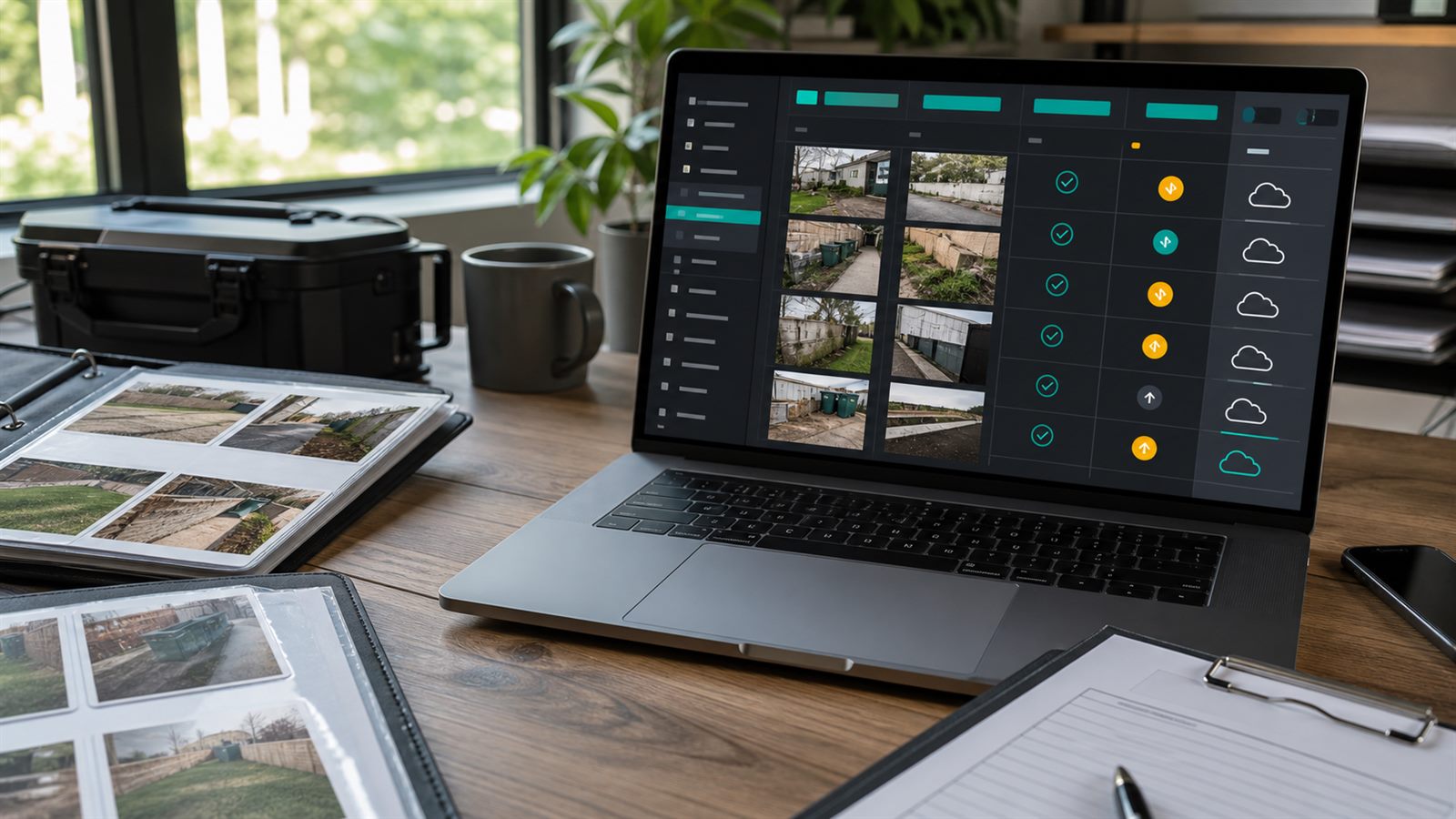
A finished job can still create a bad customer experience if the business sends the invoice before checking the evidence. A technician may forget the after photo, upload the wrong room, miss a required serial plate, or mark a repair complete while the photo shows a visible issue. The office team then has to chase details after the invoice is already in the customer’s inbox.
A job completion photo check automation solves one narrow problem: before an invoice, review request, warranty record, or closeout email is sent, the workflow confirms that the required job photos exist and routes questionable cases to a human. It is useful for contractors, cleaners, installers, inspectors, repair teams, landscaping companies, pest control companies, and any service business that depends on field evidence.
Editorial note: This guide is an independent workflow tutorial. It does not contain affiliate links.
What this workflow should do
The workflow should not try to judge every detail of workmanship. Its job is more practical: confirm that the right evidence was uploaded, classify obvious missing or mismatched photos, pause downstream messages when the record is incomplete, and give staff a small exception queue instead of a messy photo folder.
This is different from pausing invoice reminders after a customer reply. Here, the check happens earlier, before the first invoice or closeout message is approved.
When completion photo checks are worth automating
Start with jobs where photos protect both the customer and the business. Good candidates include before-and-after cleaning photos, appliance installation photos, roof or gutter repair proof, HVAC serial plates, pest treatment documentation, property maintenance work, rental turnover tasks, and inspection closeout records.
If the job requires scheduling accuracy first, connect this workflow to booking conflict checks. Photo review only helps after the right job, property, and technician record are already connected.
Step 1: Define the required photo checklist
Do not begin with AI. Begin with a checklist that a supervisor would actually use. For each job type, define the minimum photo set:
- before photo, when condition proof matters;
- after photo, when visible completion matters;
- close-up of the repaired or installed item;
- serial number, model plate, or label when warranty records require it;
- wide context photo that shows the correct room, property area, or asset;
- exception photo when the technician could not complete the work.
Keep the checklist short. If staff need twenty photos for every job, they will work around the process or upload low-quality evidence just to satisfy the form.
Step 2: Capture uploads against the job record
The workflow needs the photo tied to the right job ID, customer, address, technician, and timestamp. If photos are uploaded to a folder first and matched later by file name, mistakes are likely. A form, field app, CRM record, Airtable attachment field, or Drive upload flow should preserve the job relationship from the start.
Google’s Drive API upload guide documents simple, multipart, and resumable uploads for file data. That matters because field photos can be large and mobile connections can fail. A small business does not need to build a custom app on day one, but the same principle applies: store the upload in a stable place and keep its job metadata with it.
Step 3: Run deterministic checks first
Before using image recognition, check what software can verify reliably:
- the required number of photos exists;
- each photo is attached to the correct job ID;
- the upload happened after the job started and before closeout;
- the image file opens and is not zero bytes;
- the image has enough resolution for review;
- the technician selected the right checklist item;
- no required field is blank.
These checks are boring, but they catch many real workflow failures without asking an AI model to make a subjective decision.
Step 4: Use AI image review only for narrow labels
AI can help with lightweight screening when the question is constrained. For example, it can flag whether an uploaded photo appears to contain an appliance label, a wide room view, a damaged area, or a completed work area. Google Cloud Vision’s label detection documentation describes assigning labels to images, while OpenAI’s image input documentation covers using images as model inputs for visual analysis. Use these tools to assist review, not to certify that work quality is perfect.
Keep the prompt or label rule narrow. A good check is: “Does this image appear to show an invoice-required serial plate?” A bad check is: “Is this job done correctly?” The second question requires trade judgment, job scope, safety context, and customer expectations that may not be visible in a photo.
Step 5: Create a human exception queue
Every uncertain result should become a review task, not an automatic rejection. Route cases to a dispatcher, office manager, supervisor, or technician lead when:
- a required photo is missing;
- the AI label result conflicts with the technician’s selected checklist item;
- the image is blurry, too dark, or cropped too tightly;
- the after photo appears to show unresolved damage;
- the technician added an exception note;
- the job has a complaint, refund risk, or special instruction.
If the photo raises a service quality concern, connect the review to customer complaint escalation alerts so the right person sees the issue before a customer has to complain twice.
Step 6: Pause invoicing and review requests until the check passes
The safest downstream rule is simple: do not send the invoice, receipt request, review request, or closeout email until the job photo status is approved. The workflow should update the CRM or job management record with one of four states: missing photos, needs review, approved, or approved with exception.
This pause should be visible to staff. If the accounting team only sees “invoice blocked” without a reason, they will bypass the system. Show the missing checklist item, latest upload time, reviewer, and next action.
Step 7: Log the decision for audit and training
A useful log includes the job ID, photo IDs, checklist item, upload time, technician, automated check result, reviewer decision, invoice status, and any exception notes. This is similar to duplicate lead checks: the value is not just the automated decision, but the traceable record of why the workflow acted.
Over time, the log shows which job types need clearer technician instructions, which photo requirements are too vague, and which automations are generating unnecessary review work.
A simple no-code starter stack
A first version can be built with a field form, Airtable or a CRM attachment field, cloud storage, an automation builder, and a review queue. Airtable’s attachment field documentation is one example of how records can hold uploaded files directly. The workflow can watch for a completed job status, check required attachments, send suspicious cases to review, and approve the invoice only after the photo status changes.
Do not begin by adding image AI to every job. Start with one job type and deterministic checks. Add AI screening only where the business can describe the visual requirement in a sentence and where staff will review uncertain cases.
Quality gates before launch
Test the workflow with real scenarios: correct photos, missing before photo, missing after photo, wrong job upload, blurry image, duplicate image, technician exception note, and a job that should not require photos. Confirm that the invoice stays blocked only when it should and that staff can override the block with a reason.
Also check privacy and access. Job photos may show homes, license plates, customer belongings, addresses, equipment labels, or sensitive property conditions. Limit who can view images, avoid posting private photos into broad team channels, and keep customer communication aligned with communication consent records when messages are sent.
Limitations
Image models can misread context, miss small details, or overstate confidence. Poor lighting, reflections, tight cropping, unusual equipment, and partial damage can all confuse automated review. Use automation to catch obvious missing evidence and route exceptions, not to replace skilled supervision or trade-specific judgment.
This article is not legal, insurance, or warranty advice. Some industries have documentation requirements that are stricter than a general photo checklist. Match the workflow to your contracts, customer promises, retention policy, and privacy obligations.
Bottom line
A job completion photo check automation works best when it is narrow and auditable. Require the right photos, attach them to the right job, run deterministic checks first, use AI only for constrained visual screening, route uncertainty to humans, and pause invoicing until the record is clean. That is enough to reduce awkward invoice mistakes without pretending software can inspect workmanship by itself.