Editorial note: This guide is an independent workflow tutorial. It does not contain affiliate links.
A post-service feedback survey is useful only when it helps the business respond better. For a local service company, the goal is not to push every customer into a public review request. The safer workflow is private feedback first, human recovery when something went wrong, and a review request only when the customer clearly had a good experience.
This matters for appointment-based businesses, mobile service teams, consultants, clinics, repair providers, home services, and any company where one completed job should create a short follow-up loop. A simple survey can catch missed expectations, reveal training issues, and give the owner a cleaner signal than guessing from silence.
The Workflow in One Sentence
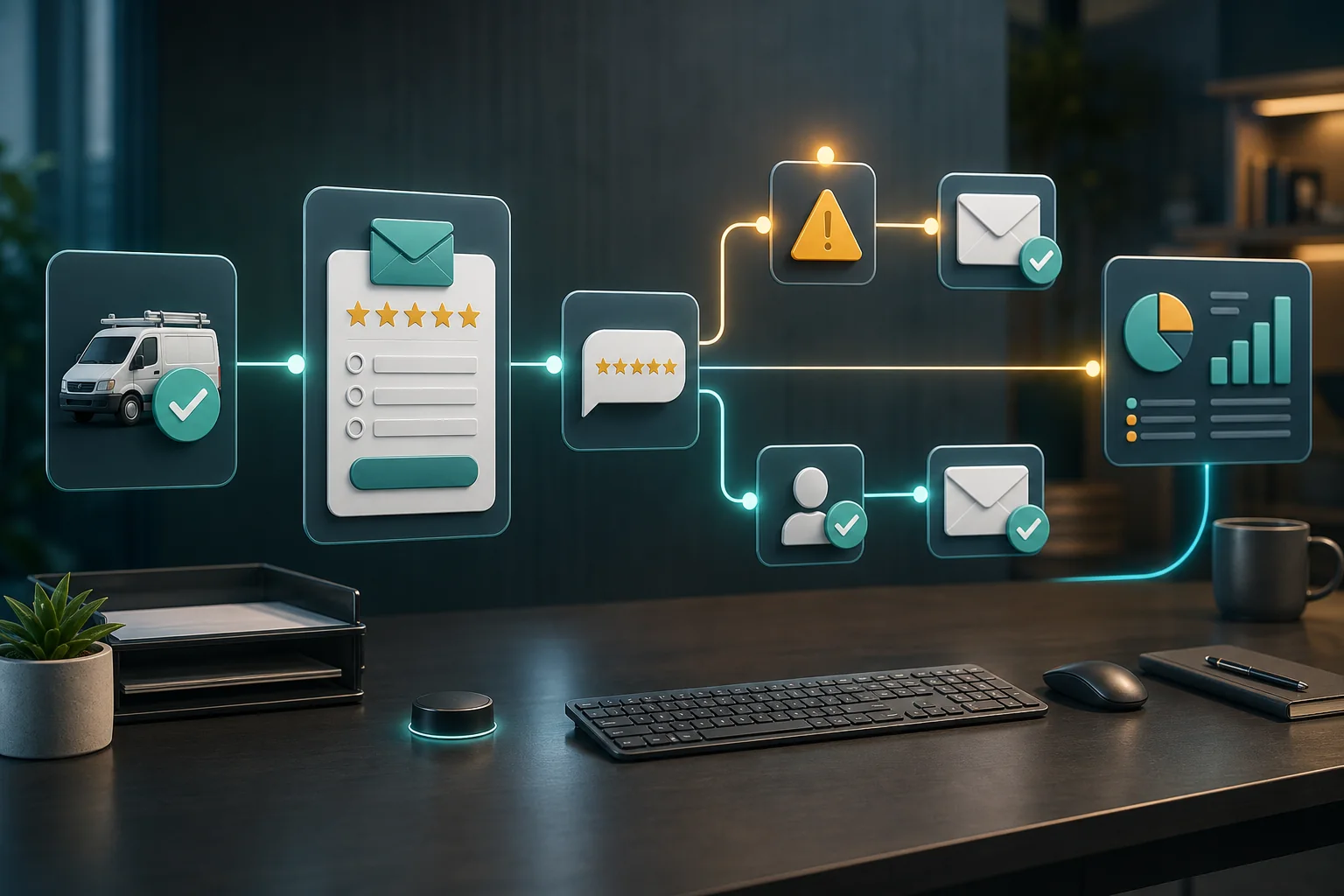
When a job is marked complete, wait long enough for the customer to experience the result, send one short feedback request, route low scores to a human, and track the outcome before sending any public review request.
That sequence keeps the automation practical. It also avoids two common mistakes: sending review requests too aggressively and collecting feedback that nobody reads.
When This Automation Makes Sense
Build this workflow when the business already has a reliable completion event. That event might come from a booking system, a CRM stage, a job management app, a payment record, or a staff member marking a task as finished.
Do not start with feedback automation if completion status is messy. If staff forget to close jobs, the system will send surveys at the wrong time. Fix the source event first. For appointment-heavy businesses, connect this workflow after the basics in automated appointment reminders and no-show follow-up are stable.
Step 1: Choose the Right Trigger
The best trigger is a business event that means the service is actually finished. Good examples include:
- a job status changed to completed;
- an invoice was paid after the service date;
- a booking was marked attended;
- a support ticket was closed;
- a form submission from staff confirms the work is done.
Avoid using calendar end time alone. A calendar event can end even if the appointment was rescheduled, canceled, or incomplete. If you must start with a calendar event, add a human confirmation step before the survey sends.
In n8n, a webhook can receive a completion event from another tool, while a schedule trigger can run timed checks for records that became eligible for feedback. Those two patterns cover most simple implementations: event-driven when your system can send a webhook, scheduled polling when it cannot.
Step 2: Wait Before Asking
Do not send the survey the instant the job closes unless the service is extremely simple. A customer may need time to test the repair, review the document, inspect the completed work, or discuss the result internally.
Use a wait period that matches the service:
- Same day: quick consultations, simple appointments, pickup services.
- Next day: home services, repairs, installation checks, onboarding calls.
- Three to seven days: services where results need time to appear.
Store the planned send time in the customer record. Before sending, recheck that the job is still complete and that the customer has not already been contacted for feedback.
Step 3: Keep the Survey Short
A feedback survey should not feel like a research project. Use one score question and one optional comment field. If the business needs operational detail, add one multiple-choice question such as service area, technician, or issue type.
A simple survey can use Google Forms. Google’s documentation explains that Forms can collect responses and analyze them in real time, and responses can also be saved into Google Sheets. That makes it a low-friction option for a small business that is not ready for a full customer experience platform.
A practical three-question structure:
- How satisfied were you with the service?
- What could we improve?
- May we contact you if we need to follow up?
Do not ask for a public review inside the same private survey. Keep the first request focused on service quality. If the score is high and the customer has not opted out, the review-request workflow can happen later. For that part, use the safeguards in automating Google review requests without violating policy.
Step 4: Route Low Scores to a Human
The most valuable part of this workflow is not the survey link. It is what happens after the response arrives.
Create routing rules before launch:
- Low score: create an urgent owner task and do not send a review request.
- Neutral score: create a normal follow-up task or improvement note.
- High score: mark the customer as review-request eligible, but still respect timing and opt-out rules.
- No response: do not keep sending reminders indefinitely.
If comments mention safety, billing, damage, privacy, discrimination, medical concerns, legal issues, or anger, route to human review even if the score is not low. AI can classify the comment, but a staff member should make the final decision on sensitive cases.
Step 5: Design the Message Carefully
The message should identify the business, reference the completed service in a general way, and make the request easy to ignore without pressure.
Thanks for choosing [Business]. We would appreciate quick private feedback about your recent service. It takes less than one minute: [survey link]. If something needs attention, reply here and our team will review it.
For SMS, be more conservative. Twilio’s messaging documentation emphasizes opt-in, opt-out, and help keywords for messaging services. If the business uses SMS, make sure consent is recorded, opt-out handling is active, and the message is clearly transactional rather than promotional.
Step 6: Avoid Duplicate Requests
Every feedback workflow needs an idempotency rule. Without it, retries and duplicate status updates can send the same customer multiple surveys.
Use a unique key built from the customer ID, job ID, and feedback request type. Before sending, search for that key. If it already exists, stop the workflow. Record the send timestamp, channel, survey URL, and delivery result.
This is especially important when the workflow connects multiple tools. A booking app, CRM, email platform, spreadsheet, and automation builder can all retry events. The workflow should treat retries as expected, not surprising.
Step 7: Use Email Automation Triggers Wisely
Email platforms can trigger automations from contact activity, tags, list joins, dates, purchases, survey responses, and link clicks. Mailchimp’s automation trigger documentation, for example, describes contact activity triggers, marketing activity triggers, survey-response triggers, and product review triggers.
For a local service workflow, do not overbuild. A simple tag such as feedback_requested, feedback_low_score, or review_request_eligible may be enough. The purpose of tags is to make later action clear, not to create a complicated scoring system nobody understands.
Step 8: Measure the Right Numbers
Track operational metrics, not vanity metrics.
- Feedback request sent count.
- Response rate.
- Low-score count.
- Human recovery task completion time.
- Repeat complaint themes.
- Review-request eligibility after private feedback.
- Unsubscribe or opt-out rate.
If response rate is low, shorten the survey or improve timing. If low-score follow-up is slow, the automation is exposing an operations problem, which is useful. Do not hide that signal by routing everything into a spreadsheet nobody checks.
Common Mistakes
Asking for too much
Long surveys reduce completion and create analysis work. Start with one rating and one comment field.
Sending a public review request after a complaint
Private feedback should protect customer recovery. If the customer reports a problem, pause promotional or review-related messages until a person reviews the case.
Ignoring SMS consent
SMS is not just another email channel. Use recorded permission, clear identification, and opt-out handling.
Letting AI answer complaints alone
AI can summarize or categorize feedback. It should not promise refunds, warranties, appointments, legal positions, or service remedies without human approval. For larger inbox workflows, see automating customer support email triage.
A Safe Minimum Setup
Start with this version:
- Completion trigger from CRM, booking system, or staff form.
- Wait 24 hours.
- Send one email with a short feedback form.
- Write the response to a sheet or CRM note.
- Create a human task for low scores or sensitive comments.
- Mark high-score customers as eligible for a later review request.
- Stop after one reminder.
This is small enough to test in a week and useful enough to improve service quality. Once it works, add segmentation by service type, technician, location, or customer stage.