
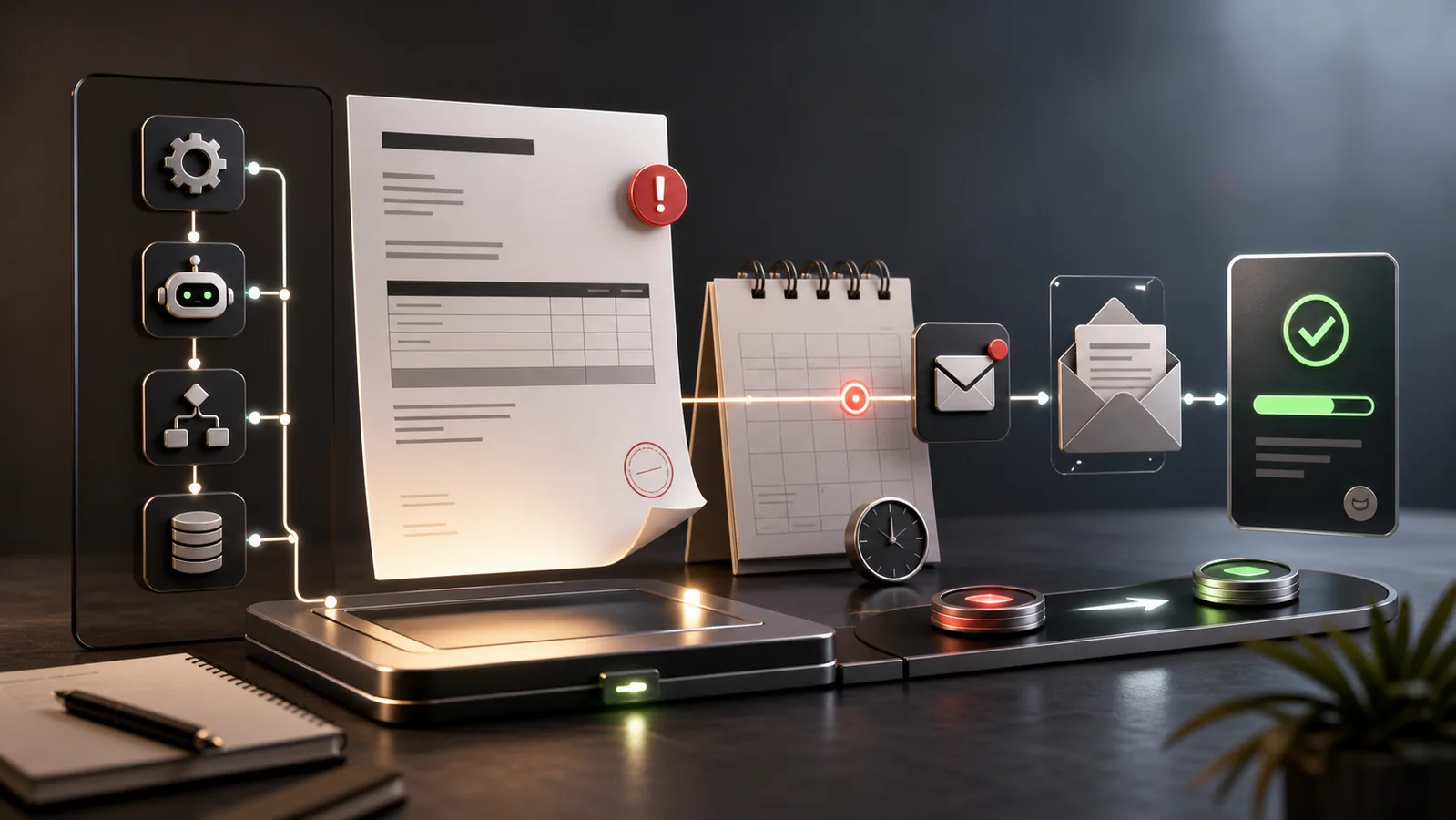
Late invoices create two problems at once: cash flow slows down, and staff lose time checking balances and writing the same follow-up messages.
An automated reminder workflow can handle the repetitive part without turning collections into a barrage of emails. The useful version does more than send a message on a timer. It verifies that the invoice is still open, checks whether a payment is processing, prevents duplicate sends, respects the customer’s timezone, and hands exceptions to a person.
This guide explains how to automate overdue invoice reminders with n8n, Make, or a similar no-code platform. The design is vendor-neutral, so it can sit alongside accounting software, a CRM, a spreadsheet, or a payment processor.
What an Invoice Reminder Workflow Should Do
A dependable workflow has seven responsibilities:
- Detect a newly issued invoice or review open invoices on a schedule.
- Normalize the invoice, customer, due-date, balance, and payment-status fields.
- Check the live payment state immediately before every message.
- Send a small number of polite reminders at defined stages.
- Stop when the invoice is paid, canceled, disputed, or under manual review.
- Record every send so retries cannot create duplicate emails.
- Escalate unusual or high-value cases to a staff member.
This is the same operating discipline used in a good appointment reminder workflow: use a reliable status, check it again before sending, limit the sequence, and provide an exit path.
Choose the Right Trigger
There are two practical trigger patterns. The right one depends on what the accounting system can expose.
Event-Based Trigger
The accounting or payment platform sends a webhook when an invoice is created, becomes overdue, is paid, or changes status. The workflow stores the event and schedules the appropriate next action.
This approach is efficient and reacts quickly, but it needs reliable webhooks and careful duplicate protection. Providers sometimes retry the same event. Use the provider’s event ID, invoice ID, and event type as an idempotency key rather than assuming every webhook is unique.
Scheduled Reconciliation
A workflow runs once or twice per day, retrieves invoices that might need attention, and checks each one against the reminder rules.
n8n’s official Schedule Trigger documentation notes that workflows can run at fixed intervals or specific times. It also warns that the workflow must be published and that scheduling depends on the workflow or instance timezone.
Scheduled reconciliation is often easier for a small business because it catches missed webhooks and status changes. A strong design uses webhooks for speed and a daily scheduled run as a safety net.
Define the Reminder Policy Before Building
Do not let the automation tool decide the collection policy. Write the policy first, then translate it into conditions.
A restrained starting sequence might be:
- Three days before the due date: optional courtesy notice for larger invoices or longer payment terms.
- On the due date: short reminder with the invoice number, amount due, and payment link.
- Three days overdue: polite follow-up asking whether the customer needs a copy or has a payment issue.
- Seven days overdue: final automated reminder and creation of a staff task.
- After that: pause automation and use a human review process.
The exact timing should match the contract, normal customer relationship, invoice value, and local requirements. Do not add late fees or threaten consequences unless the business is entitled to do so under its agreement and applicable law.
Stripe’s current automatic collection documentation supports the core timing pattern: reminders for one-off invoices can be scheduled before, on, or after the due date. Stripe also suppresses a scheduled reminder when a payment is already processing, which is a sensible rule to reproduce in a custom workflow.
Build the Data Model
The workflow needs stable operational fields. At minimum, keep:
invoice_idcustomer_idinvoice_numberissued_atdue_atcurrencyamount_dueamount_remainingpayment_statuspayment_urlcustomer_timezonelast_reminder_stagelast_reminder_sent_atmanual_holdworkflow_status
Store provider IDs rather than matching records by customer name or invoice amount. Names change, amounts repeat, and email addresses can be shared. Stable IDs are what make the workflow auditable.
Do not copy full invoice documents, card data, or unnecessary personal information into the automation database. Keep only the fields needed to make the decision and link staff back to the system of record.
A Practical n8n Workflow Blueprint
The following structure works for a scheduled daily workflow:
- Schedule Trigger: Run during normal business hours in the customer’s or service area’s timezone.
- Accounting API request: Retrieve open invoices whose due dates fall inside the policy window.
- Loop through invoices: Process one record at a time or in small batches.
- Normalize fields: Convert provider-specific statuses and dates into the internal data model.
- Live status check: Retrieve the individual invoice again immediately before deciding to send.
- Eligibility filter: Exclude paid, void, canceled, disputed, processing, test, or manually held invoices.
- Stage calculation: Compare the current time with the due date and select the permitted reminder stage.
- Duplicate check: Confirm that this invoice and stage have not already been sent.
- Message creation: Insert the approved template variables without inventing payment facts.
- Email send: Send through the business’s normal transactional email provider.
- Audit update: Save the provider message ID, stage, timestamp, and outcome.
- Escalation: Create a task when the policy reaches its human-review threshold.
Teams choosing between workflow platforms can use the existing Make versus n8n comparison to decide which environment better fits their hosting and maintenance requirements.
Using Wait Nodes Instead
An event-based workflow can start when the invoice is issued and pause until each reminder date. n8n’s Wait node can resume after an interval or at a specified date and time.
This is convenient, but long-running executions should not replace live status checks. After every wait, retrieve the invoice again. A customer may have paid, the invoice may have been credited, or staff may have placed it on hold while the workflow was paused.
The Most Important Rule: Check Before Every Send
Payment state can change between the scheduled query and the email action. The workflow should therefore use a two-step check:
- Find invoices that appear eligible.
- Retrieve the chosen invoice again immediately before sending.
Stop the reminder when any of these conditions are true:
- The remaining balance is zero.
- A payment is pending or processing.
- The invoice is void, canceled, credited, or written off.
- The customer has disputed the invoice.
- A staff member has enabled a manual hold.
- The same reminder stage already has a successful message ID.
- The recipient address is missing, invalid, or suppressed.
This fail-closed behavior is more important than sending every possible reminder. One unnecessary collection email can create more work than one delayed email.
Keep the Message Useful and Neutral
The email should help the customer complete a known obligation. It should not sound like a generic marketing sequence.
Subject: Reminder: invoice [invoice number] is due [date]
Hello [customer name],
This is a reminder that invoice [invoice number] for [amount] is due on [date]. You can view the invoice and payment options here: [secure payment link].
If payment is already in progress, please disregard this message. If you need another copy or believe the invoice requires correction, reply to this email so our team can review it.
Thank you,
[business name]
Only insert values returned by the accounting system. Never let a language model calculate the balance, due date, late fee, bank details, or payment status. AI can help draft a template, but financial fields should come from deterministic data.
Handle Failed Payments Separately
An overdue invoice and a failed automatic payment are related but different states. A failed payment may require a new payment method, customer authentication, or action from the issuing bank.
Stripe’s payment retry documentation explains that some failures are recoverable and can be retried automatically, while hard declines and other conditions should not be retried in the same way. If the payment provider already manages retries, the no-code workflow should read that state rather than starting a competing retry sequence.
A practical rule is:
- Let the payment platform manage card retries.
- Let the reminder workflow explain what the customer needs to do.
- Suppress routine overdue messages while a payment is processing.
- Escalate authentication failures, disputes, and repeated failures to staff.
Add Reliability and Human Escalation
Automations fail. API credentials expire, email providers reject messages, accounting fields change, and network calls time out.
n8n supports a separate error workflow, described in its official error-handling documentation. Configure it to notify an operator with the workflow name, invoice ID, failed step, and execution link. Do not include unnecessary customer or payment details in alerts.
Use retry logic only for temporary technical failures. A retry should not repeat a successful email send. Record the message provider’s response before moving to the next step, and use the invoice ID plus reminder stage as a unique key.
The escalation pattern is similar to a missed-call and web-lead follow-up system: automation acknowledges routine cases, while a person handles exceptions that require context or negotiation.
Test the Workflow Before Activating It
Create test invoices for each important path:
- Open and not yet due.
- Due today.
- Three days overdue.
- Paid before the scheduled send.
- Payment processing.
- Partially paid.
- Voided or credited.
- Disputed.
- Missing email address.
- Duplicate webhook event.
- Email provider timeout after accepting the message.
- Manual hold enabled.
Run the workflow in a mode that redirects every message to an internal test address. Confirm dates and amounts in more than one timezone, and verify that the payment link uses HTTPS and opens the correct invoice.
After launch, start with a small invoice segment and review the execution log every day for the first week.
Metrics Worth Tracking
Useful operational measures include:
- Invoices eligible for each reminder stage.
- Messages sent, delivered, bounced, and suppressed.
- Invoices paid after a reminder, reported as correlation rather than guaranteed attribution.
- Median days to payment.
- Duplicate-send attempts blocked.
- Cases escalated to staff.
- Workflow failures and average recovery time.
Avoid optimizing for email volume. The objective is to reduce overdue balances and staff effort while preserving customer relationships.
Common Mistakes
Sending from an Old Spreadsheet Export
A static list becomes wrong as soon as an invoice is paid or changed. Query the system of record and verify the individual invoice before sending.
Using One Sequence for Every Customer
A small recurring invoice, a disputed project invoice, and a high-value commercial account should not automatically receive identical treatment.
Trusting a Timer Without Checking Status
Wait nodes control timing, not eligibility. Re-check payment state after every wait.
Allowing AI to Invent Financial Fields
Balances, dates, payment links, and fees must come from verified system data. Keep generation away from those fields.
Automating the Entire Collections Process
Automation is suitable for routine reminders. Disputes, hardship, contract questions, and important account relationships need human judgment.
Launch Checklist
- Document the reminder stages and stop conditions.
- Confirm invoice terms and approved message wording.
- Set the correct workflow timezone.
- Use stable invoice, customer, event, and message IDs.
- Check live payment state before every send.
- Suppress paid, processing, disputed, credited, and held invoices.
- Store a unique record for each invoice and reminder stage.
- Configure a separate error workflow.
- Test duplicate, timeout, partial-payment, and manual-hold paths.
- Provide a clear reply path to a real person.
Where This Fits in Customer Operations
Invoice reminders work best when they share clean customer and transaction data with the rest of the service workflow. The same paid-invoice event can close a billing task, start onboarding, or trigger a later policy-aware Google review request.
For teams still organizing their initial automations, the broader n8n lead follow-up guide demonstrates the same foundations: normalized data, duplicate prevention, status checks, and human escalation.
Frequently Asked Questions
How many overdue invoice reminders should a small business send?
There is no universal number, but a short documented sequence followed by human review is safer than indefinite automated follow-up. Start with a due-date reminder and one or two overdue stages.
Should the workflow run on a timer or use webhooks?
Use webhooks when the accounting platform provides reliable events, and keep a scheduled reconciliation workflow as a safety net. Both approaches must check the live invoice status before sending.
Can AI write personalized invoice reminders?
AI can help draft approved wording, but it should not generate or calculate amounts, dates, fees, payment status, or payment instructions. Insert those values directly from the accounting system.
What happens when a payment is processing?
Suppress the normal reminder until the provider reports a final state. Sending an overdue notice during processing can confuse the customer and create unnecessary support work.
Can the workflow automatically add late fees?
Only when the fee is supported by the customer agreement and applicable law, and the accounting system applies it deterministically. Do not let the automation invent or calculate an unauthorized charge.
Does automation guarantee faster payment?
No. It improves consistency and reduces administrative work, but payment timing still depends on invoice accuracy, customer circumstances, contract terms, and the available payment methods.
Final Takeaway
The best invoice reminder automation is conservative. It checks the accounting system twice, sends only approved messages, stops on ambiguous states, records every action, and moves difficult cases to a person.
Automate the reminder, not the judgment.